EHR import
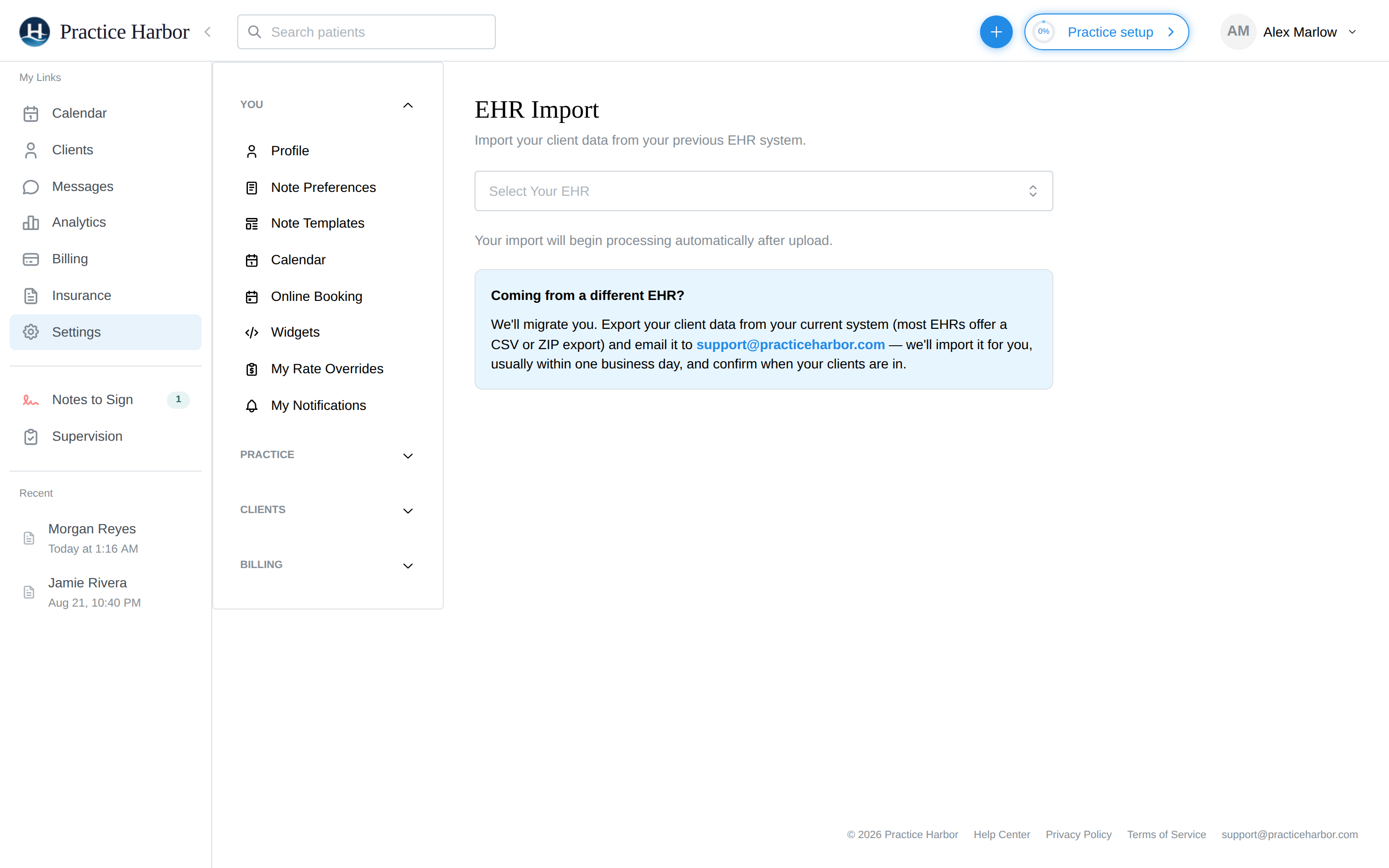
Import your existing client records from another EHR system. Upload a data export zip file and the platform automatically parses and creates client records.
In this guide, we'll cover:
How it works
- Export your data from your previous EHR (as a zip file)
- Go to Settings → EHR Import
- Select your EHR from the dropdown — SimplePractice and Sessions Health each get a tailored importer that understands their export format — then upload the zip file; processing starts automatically after upload
- The system automatically parses:
- Client contacts (VCF files) → Patient records
- Progress notes (PDFs) → Clinical notes with session dates, diagnoses, and CPT codes
- Treatment plans (PDFs) → Structured treatment plan records
- Other documents → Stored as uploaded documents on the client's profile
- Review the imported data
Supported formats
- Password-protected zip files from most EHR export systems
- VCF contact files
- PDF progress notes, treatment plans, and documents
After import
- Imported records are tagged so you can easily identify them
- Review imported data for accuracy
- All imported records are linked to the correct client profiles
info
Couples and family groups are imported in a second pass after individual clients, so shared records land on profiles that already exist. Coming from an EHR that isn't in the dropdown? Export your client data from your current system (most EHRs offer a CSV or ZIP export) and email it to support@practiceharbor.com — we'll import it for you, usually within one business day, and confirm when your clients are in.