Creating and managing invoices
Invoices are how sessions become money owed.
In this guide, we'll cover:
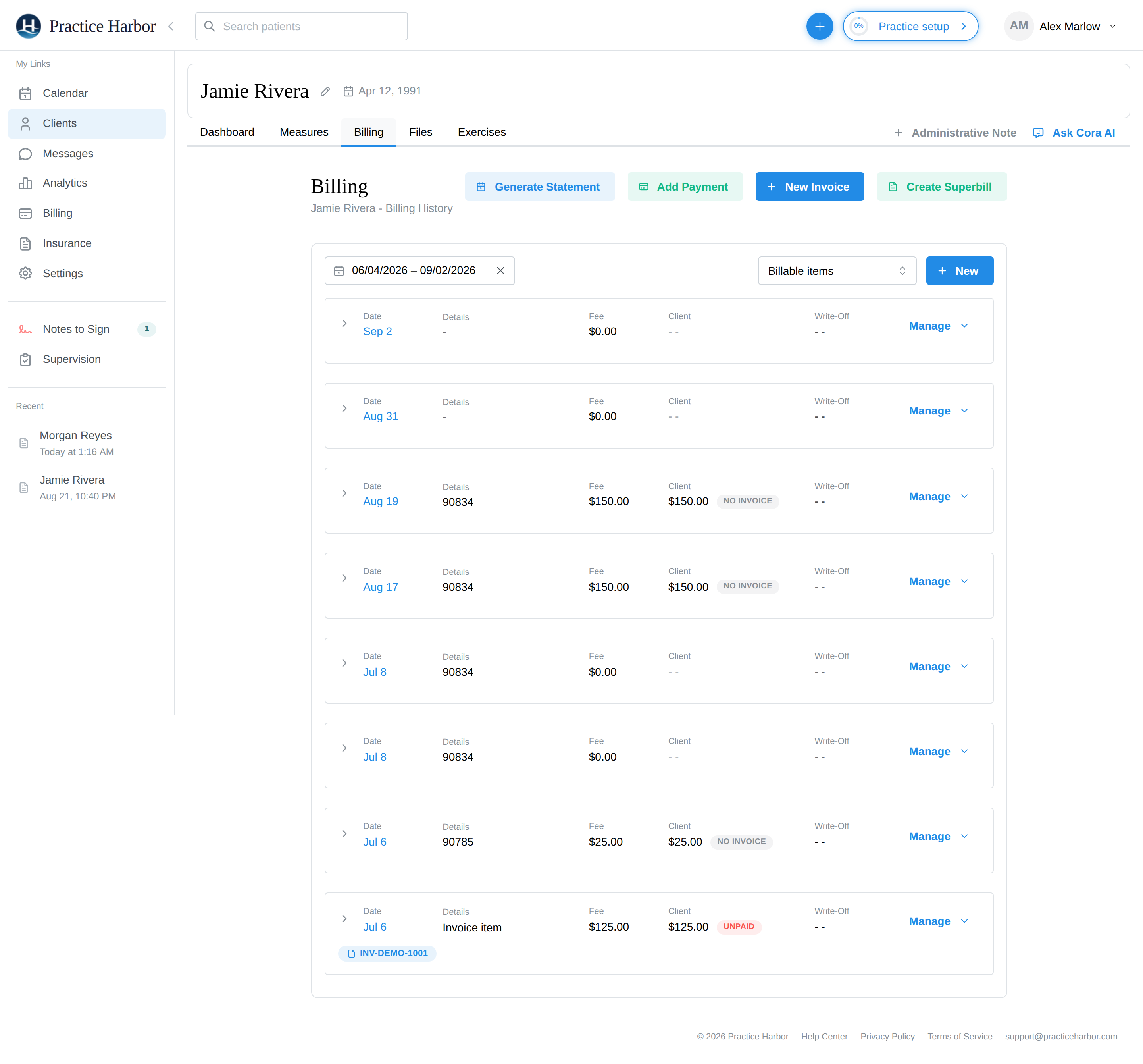
Creating invoices
Automatically. A nightly job can invoice new billable sessions on a daily or monthly schedule — set it under Settings → Invoicing. The rate comes from your rate hierarchy.
From the client's Billing tab.
- Click New Invoice.
- In "Create Invoice for [client]", tick the uninvoiced appointments to include — or start a blank invoice for non-session charges.
- Click Create Invoice — the session leaves the Unbilled list.
From the appointment itself. The appointment panel offers Create invoice (or Create Invoice & Add Payment to bill and collect in one motion) as soon as a session has a client balance.
To add non-session items — late-cancel fees, workbooks — use Add Line Item on the invoice and pick from your Products.
Sending invoices
From the invoice's row menu: Send Invoice emails the client a PDF; Download Invoice PDF saves one locally. Sends are logged under Billing Documents, and clients with portal access also see and pay invoices there. To email every invoice automatically, turn on the client's billing-notification switches under Document Automation on their Payment & Insurance tab.
Correcting an invoice
- Changing the session's fee updates its invoice. Edit the fee or service on the session, from the client's Billing tab or from the appointment on the calendar, and the invoice follows: same invoice number, new amount. If the client had already paid the old amount and the fee went up, the invoice reopens for the difference; if the fee went down to what was paid, it closes as paid. If they paid more than the new amount, the extra shows as credit you can apply or refund. The billing row's history shows each change ("Total fee increased to $150"). For an insurance session the invoice tracks the client's share, so a fee change leaves it alone.
- On the invoice itself, editable fields are deliberately few: the issued date and description. The invoice number is locked.
- Delete Invoice (row menu) voids it: "The session and its charges are kept (un-billed) and can be re-invoiced." The session simply returns to your Unbilled list.
- A paid invoice can't be deleted — "This invoice has payments allocated to it. Remove payments first." That ordering keeps payments from ever being orphaned.
Statements
Where an invoice covers a visit, a statement summarizes an account: charges, payments, and balance across a date range. Click Generate Statement on the client's Billing tab and download or send it — useful for clients who want one document for taxes, HSA/FSA substantiation, or their own records. Monthly statements can also generate automatically (Settings → Invoicing — "Automatically generate monthly statements", with a day-of-month and optional client email).
Invoice statuses
- Issued — created and awaiting payment (new invoices start here)
- Balanced — paid in full
- Cancelled — voided; its sessions returned to Unbilled