AutoPay
AutoPay collects what enrolled clients owe without anyone typing card numbers at the front desk: every night it looks at each enrolled client's issued invoices, applies any available credit first, and charges the remainder to their saved card.
In this guide, we'll cover:
Turning AutoPay on
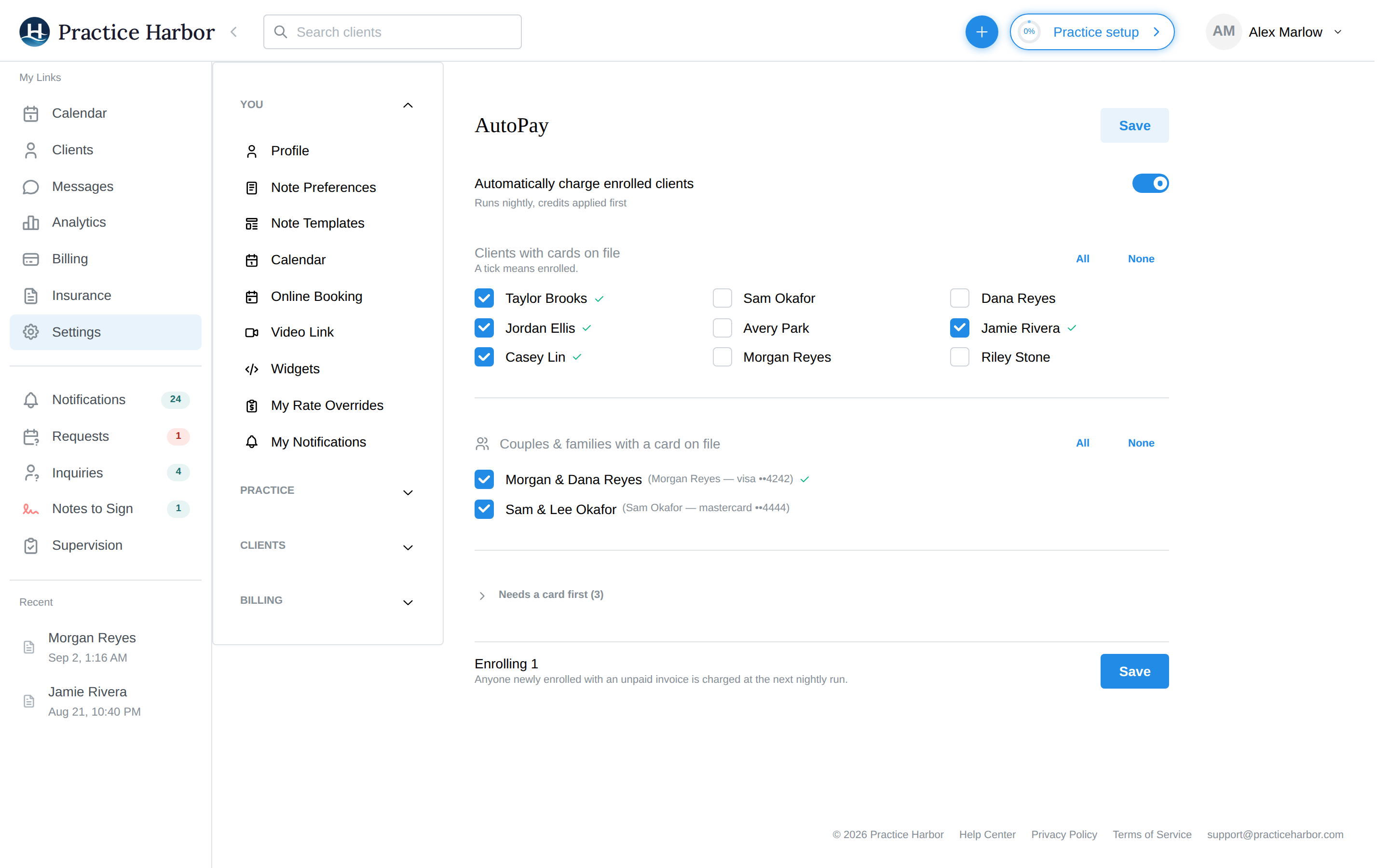
- Go to Settings → AutoPay (owners and practice managers; you'll be pointed to payment setup first if online payments aren't configured yet).
- Flip on "Automatically charge enrolled clients" — "Runs nightly, credits applied first."
- Enroll below: Clients with cards on file and Couples & families with a card on file (use All / None or pick individually). A tick means enrolled, and nothing is ticked until you choose. A couple or family is charged on the guarantor's card, shown on the row, so it doesn't need a separate card.
- Needs a card first shows who can't enroll yet. Open it and click a name for Go to Profile to add their card.
- Click Save. It tells you what will change, and asks you to confirm before removing anyone. Anyone newly enrolled with an unpaid invoice is charged at the next nightly run.
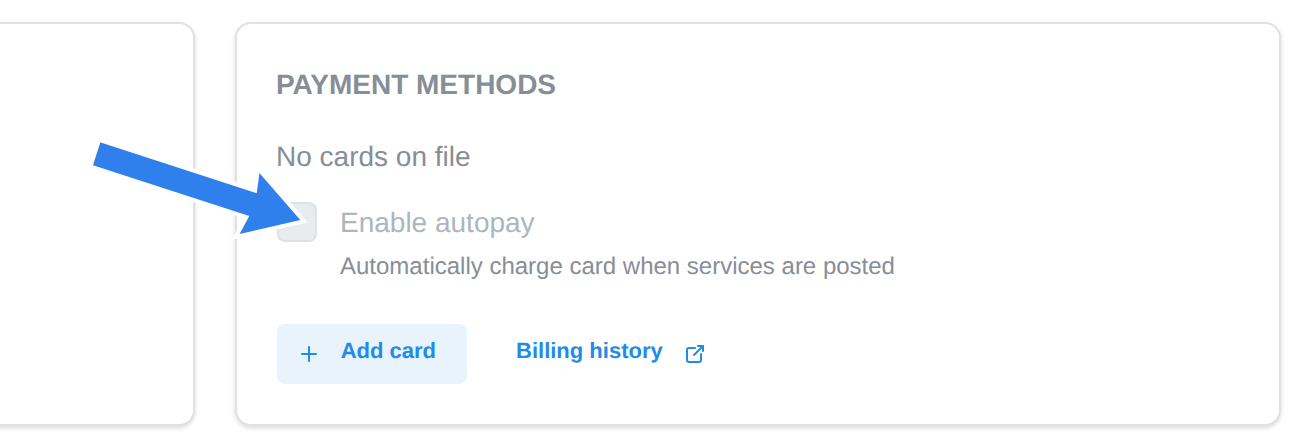
Individual enrollment also lives on each client's chart: click the pencil next to their name, then Payment & Insurance → Payment Methods → "Enable autopay" (greyed out until a card is on file). For minors, the card and the charge belong to the guardian — see Minor clients.
What gets charged, and when
- AutoPay runs nightly (around 1 AM in your practice's time zone).
- It charges the balance of issued invoices — so your invoicing rhythm drives it. Pair AutoPay with automatic daily invoicing for a fully hands-off pipeline: session happens → invoice issues → card charged that night. If invoicing is set to Manual, AutoPay has nothing to charge until you create invoices yourself, and the AutoPay settings page shows a yellow Invoicing is set to Manual warning with a link to the Invoicing settings.
- Available credit is applied first; the card is only charged for the remainder.
- Charges show up on the Card Transactions tab like any other card payment, and invoices flip to Balanced.
The Evening Summary email previews tonight's run: each appointment shows a "CLIENT OWES / AUTOPAY" pair, plus an "Additional AutoPay Charges for Tonight" section and an "AutoPay — No Card on File" warning for money that won't move until a card is added.
When a card fails
- Transient problems (network hiccups) don't count against the client — the next nightly run simply tries again.
- After three hard card failures (declines, invalid card), AutoPay is disabled for that client and an urgent message is logged for the practice: "AutoPay has been disabled for [name] due to 3 failed payment attempts." Fix the card, re-enable, and the cycle resumes.
- Removing a client's last saved card disables their AutoPay automatically — "AutoPay has been automatically disabled because no payment methods remain."
Stopping AutoPay
- One client: untick "Enable autopay" on their Payment & Insurance tab.
- Everyone: turn off the switch at Settings → AutoPay — the nightly run skips your practice entirely.