Unallocated payments, credits & external payments
Not every dollar arrives neatly attached to an invoice. This page covers the three flavors of "money without a home" and how each is handled.
In this guide, we'll cover:
Unallocated payments
Money lands in the client's unallocated credit pool in three main ways: an advance payment (below), an overpayment (the client paid more than an invoice's balance), or a fee adjustment that left paid-for value uninvoiced (shown separately as Uninvoiced Credit on the billing summary — one click converts it into a credit).
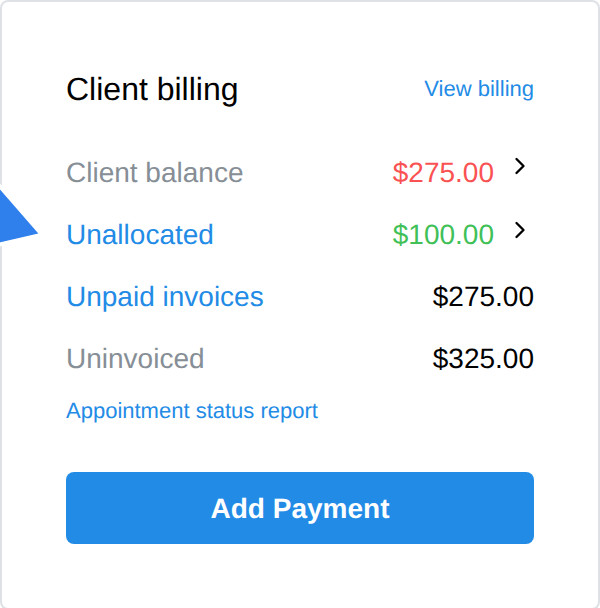
The pool shows as the Unallocated row on the Client billing card (the client's Dashboard tab); click the arrow beside the amount to split it into payments and invoices.
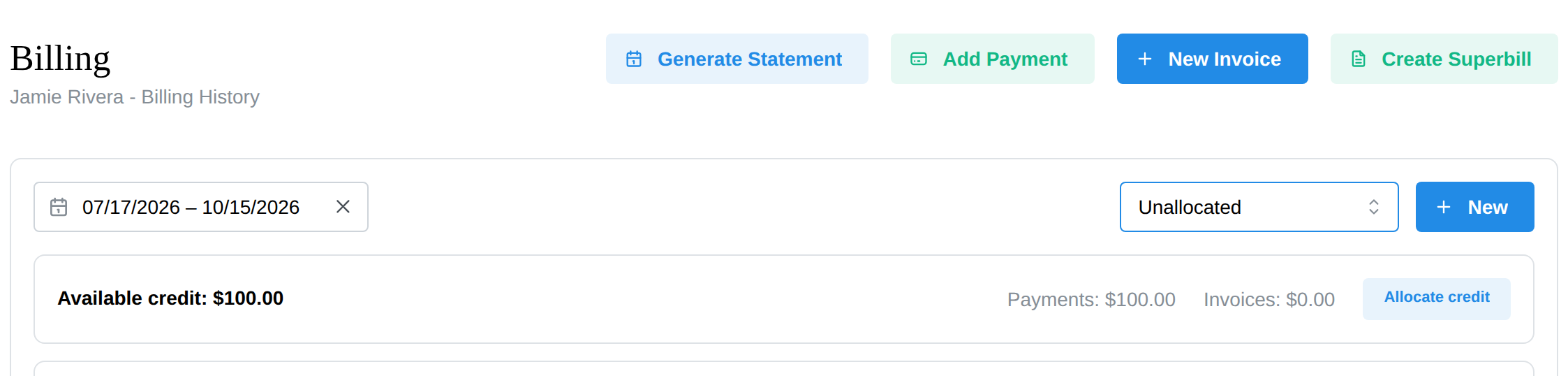
To see each payment behind it, open the client's Billing tab and pick Unallocated in the filter menu (it reads Billable items by default). Every payment with money left over shows an Allocate link.
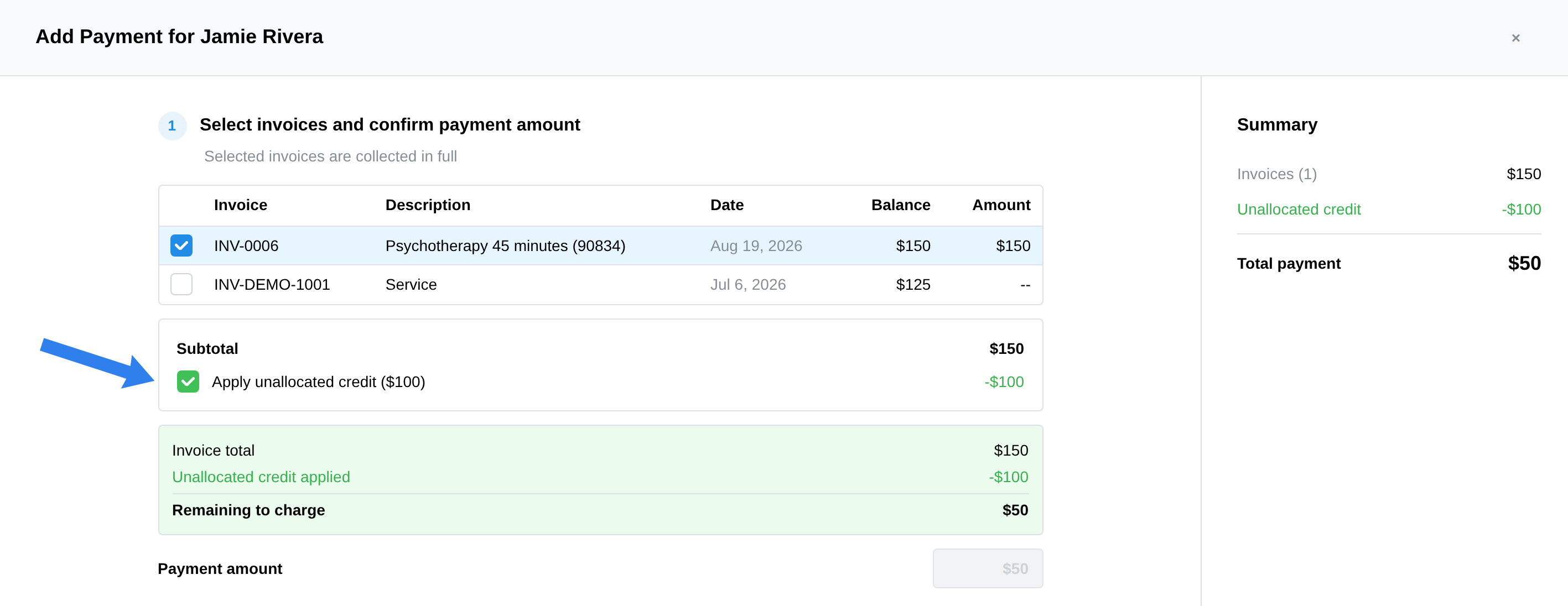
To spend the credit:
- Click Allocate (or Add Payment — clicking Unallocated on the Client billing card opens it too).
- Tick the invoice(s) to settle.
- Tick "Apply unallocated credit ($X)" — Allocate arrives with it already ticked. The Summary shows the credit applied and any remainder to charge.
- With enough credit, the button reads "Allocate $X Credit" and settles the invoice with no charge at all; otherwise pick a payment method for the remainder.
Insurance payments have their own version of this on the insurance side (see Payments & ERAs).
Advance payments & credits
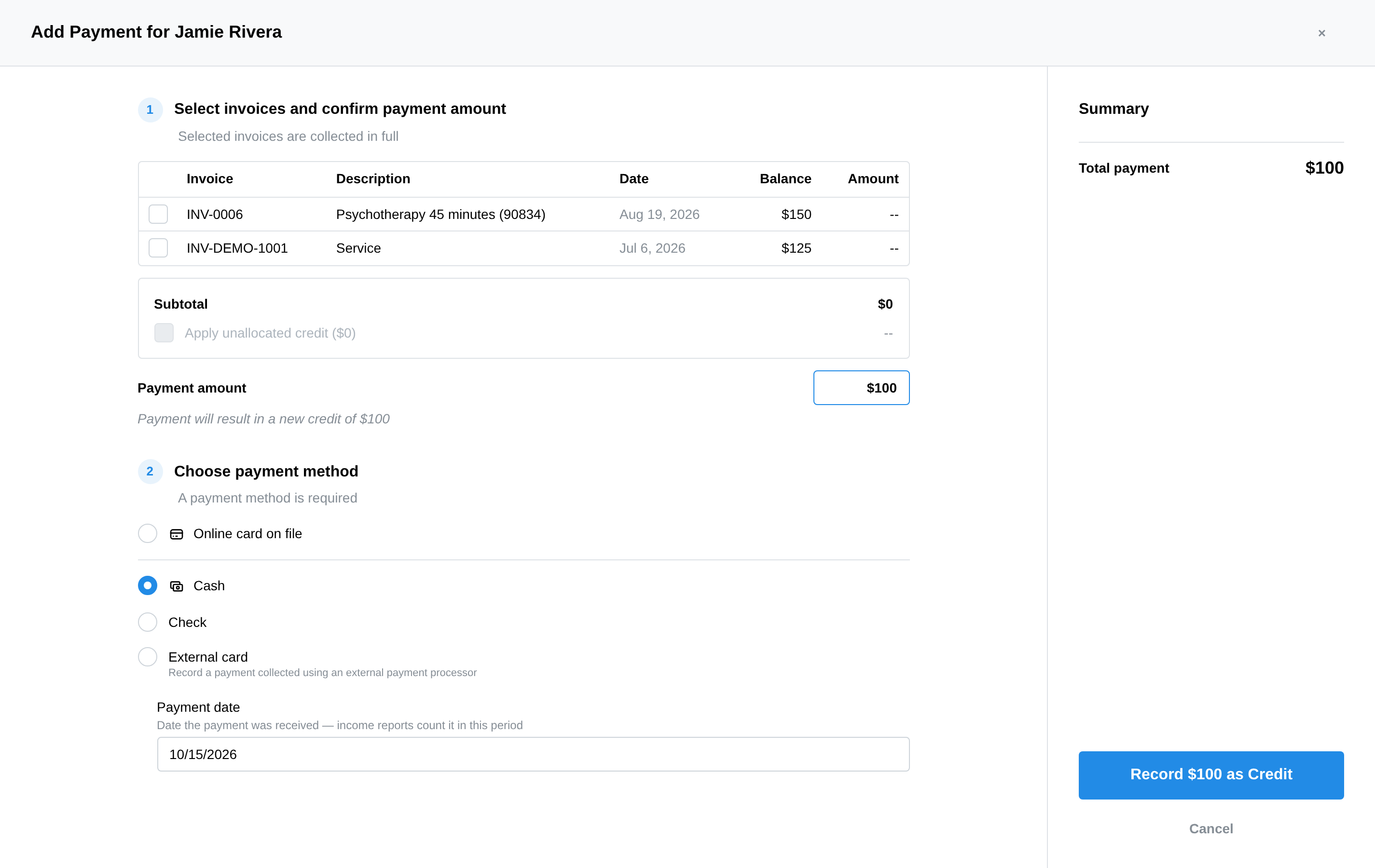
Clients sometimes pay ahead — a deposit, a package of sessions, or simply "put $100 on my account." To record it:
- Open the client's Billing tab and click Add Payment.
- Leave every invoice unticked and type the amount in Payment amount — "Payment will result in a new credit of $100."
- Pick the method and click "Charge $100 as Credit" (card on file) or "Record $100 as Credit" (cash, check, or external card).
Two things to know about credits:
- The credit pool is visible on the Client billing card, so you always know what's available
- Credit is applied to invoices only when you explicitly choose to apply it — invoicing never silently consumes a client's credit, so there are no surprises on either side
Payments made outside the platform
Collected a payment on an external platform (a legacy card reader, Venmo, a check deposited directly)? Record it so the books stay whole:
- Open the client's Billing tab → Add Payment
- Choose External card ("Record a payment collected using an external payment processor"), Cash, or Check — with a transaction reference or check number for your records
- Set the Payment date ("Date the payment was received — income reports count it in this period"), and apply it to the right invoice (or leave it as credit)
Recording external payments keeps client balances, statements, and your Billing Dashboard numbers truthful — the platform doesn't need to have processed a payment to account for it.