Creating and using services and products
Practice Harbor uses two types of billable items: services (tied to appointments) and products (standalone charges added to invoices). Both are managed under Settings > Billing > Services and Settings > Billing > Products.
In this guide, we'll cover:
Services (fee schedule)
Services represent billable appointments on the calendar. Each service is associated with a CPT code, a description, a default rate, and a default duration. Your fee schedule is the master list of services available to your practice.
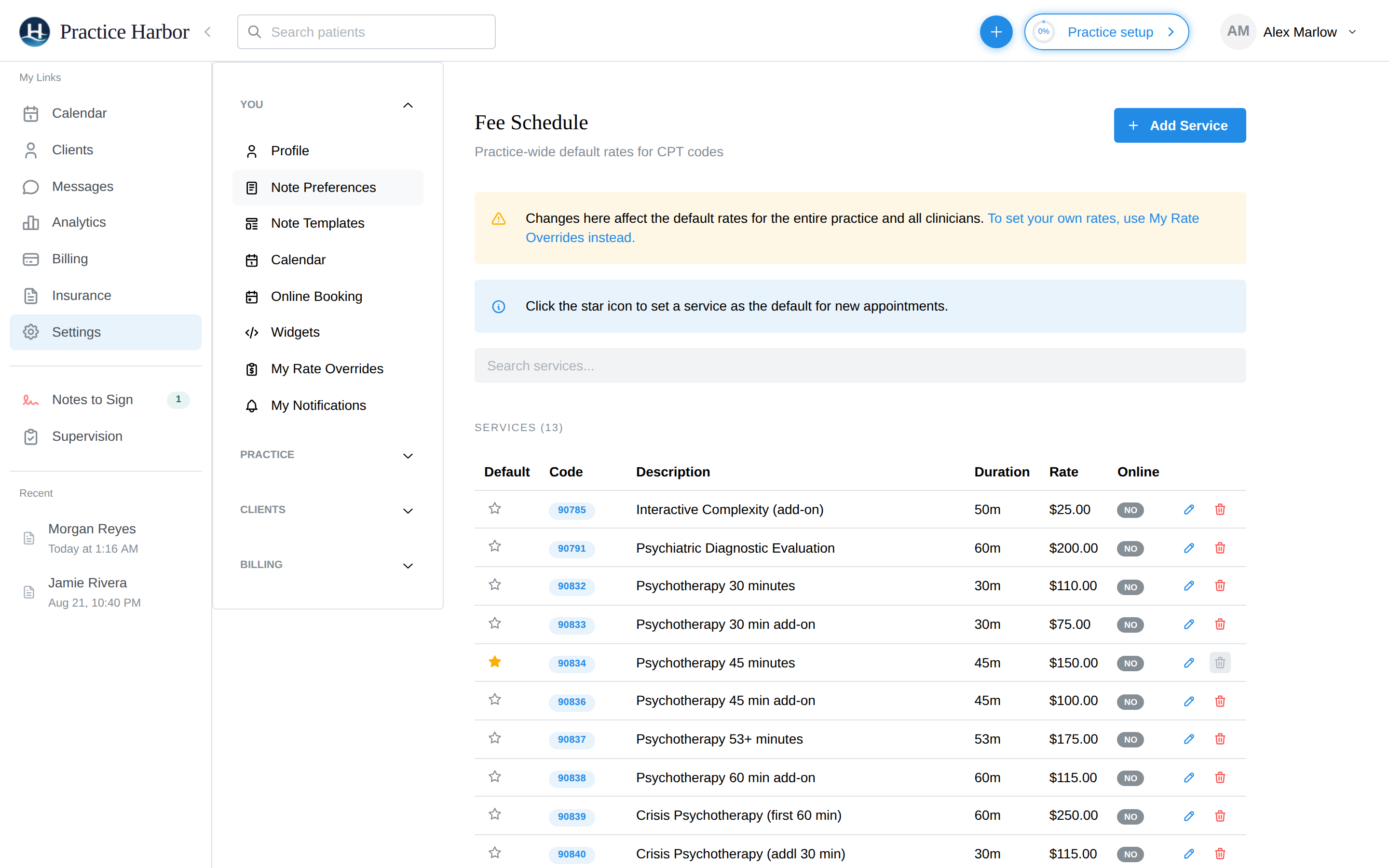
Pre-loaded CPT codes
When your practice is created, Practice Harbor automatically populates your fee schedule with commonly used therapy CPT codes:
| Code | Description | Default Rate | Default Duration |
|---|---|---|---|
| 90791 | Psychiatric Diagnostic Evaluation | $200.00 | 60 min |
| 90832 | Psychotherapy 30 minutes | $110.00 | 30 min |
| 90834 | Psychotherapy 45 minutes | $150.00 | 45 min |
| 90837 | Psychotherapy 53+ minutes | $175.00 | 53 min |
| 90846 | Family Therapy (without patient) | $175.00 | 50 min |
| 90847 | Family Therapy (with patient) | $200.00 | 50 min |
| 90853 | Group Therapy | $65.00 | 60 min |
Additional codes such as 90833, 90836, 90838 (add-on codes), 90839/90840 (crisis psychotherapy), and 90785 (interactive complexity) are also included. You can edit rates and add new services at any time.
The default service code for new appointments is 90834 (Psychotherapy 45 minutes). You can change this by clicking the star icon next to any service.
Adding a service
- Navigate to Settings > Billing > Services
- Click the Add Service button in the top right
- In the dialog that appears, fill in (or, for a free consultation, click "Use the free
15-min consultation preset" at the top of the dialog to pre-fill a $0, 15-minute
"Initial Consultation - No Charge" service):
- CPT Code — the billing code (e.g.,
90834) - Description — a label for the service (e.g., "Psychotherapy 45 minutes")
- Rate — the dollar amount charged per session
- Default Duration — session length in minutes (auto-fills based on the CPT code when available)
- CPT Code — the billing code (e.g.,
- The Booking Options section controls whether this service appears in online booking — see Making a service bookable online
- Click Save
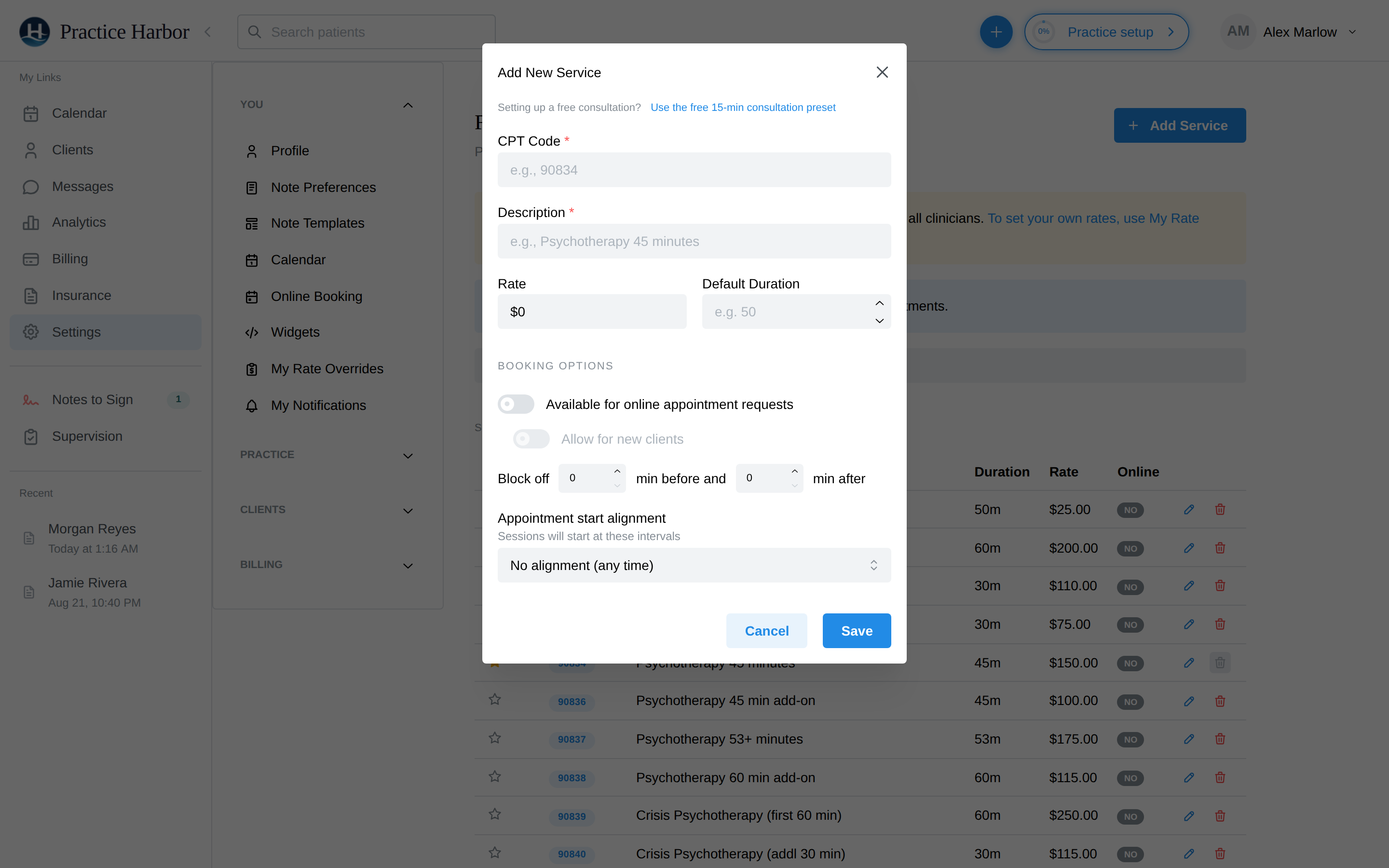
You can enter any alphanumeric value in the CPT Code field, not just standard CPT codes. This lets you create custom service codes for private-pay offerings such as coaching sessions or workshops.
Editing a service
- Navigate to Settings > Billing > Services
- Find the service you want to change and click the pencil icon in its row
- Update the Description, Rate, or Default Duration as needed (the CPT code itself is locked — "Codes can't be changed — delete this service and create a new one")
- Click Save
Editing a service updates only future appointments. Existing appointments that already use this service will keep their original rate and duration.
Making a service bookable online
The public booking page and portal only offer services you've explicitly made bookable — new practices start with none switched on, so this is a normal first-time setup step (skipping it is why prospective clients see "No services are currently available for online booking").
To make a service bookable:
- Navigate to Settings > Billing > Services
- Click the pencil icon on the service you want to offer (a free initial consultation is a common choice — see the preset in Adding a service)
- In the Booking Options section, turn on Available for online appointment requests
- For prospective clients to book it too, also turn on Allow for new clients
- The switch is only available once the first one is on — and new-client booking requires both
- Optionally set Block off buffer minutes before/after, and Appointment start times (on the hour, half hour, quarter hour, or based on service duration) to override the practice setting
- Click Save
The Can new clients book you online? readiness card at Settings → Online Booking checks this for you along with the practice and clinician switches — see Online booking troubleshooting.
Deleting a service
- Click the trash icon next to the service you want to remove
- The service is removed from your fee schedule
You cannot delete the service that is currently set as the default. To remove it, first set a different service as the default by clicking the star icon on another service, then delete the original.
Setting the default service
The default service is automatically selected when you create a new appointment. It is indicated by a filled star icon in the Default column.
To change the default:
- Navigate to Settings > Billing > Services
- Click the star icon next to the service you want to make the default
- The star fills in and the new default takes effect immediately
Searching services
Use the Search services... text field above the fee schedule table to filter services by code or description. This is helpful when your fee schedule contains many entries.
Clinician rate overrides
Your fee schedule defines practice-wide default rates. If individual clinicians in your practice charge different rates for the same service, you can set per-clinician overrides.
From the fee schedule page, follow the link in the yellow warning banner — "To set your own rates, use My Rate Overrides instead." — to the My Rate Overrides page. There, each service shows the org default next to a Your Rate field: enter an amount to override, leave blank to use the practice default, and optionally pick your own Default Service for scheduling. Owners, practice managers, and full-caseload clinicians can edit their own overrides; other roles see their assigned rates read-only.
The full rate hierarchy, highest priority first: per-session override > couple/group rate > client-specific rate > group appointment default fee > clinician rate override > practice-wide default. A rate set closer to the session always wins — and a client's negotiated sliding-scale rate survives joining a therapy group with its own default per-member fee.
Products
Products are billable items that are not tied to appointments. They are added directly to invoices and do not appear on the calendar or require clinical documentation.
Common uses for products include:
- Late cancellation or no-show fees
- Books, workbooks, or therapy materials
- Administrative fees (records requests, letters, reports)
- Workshop or group event fees
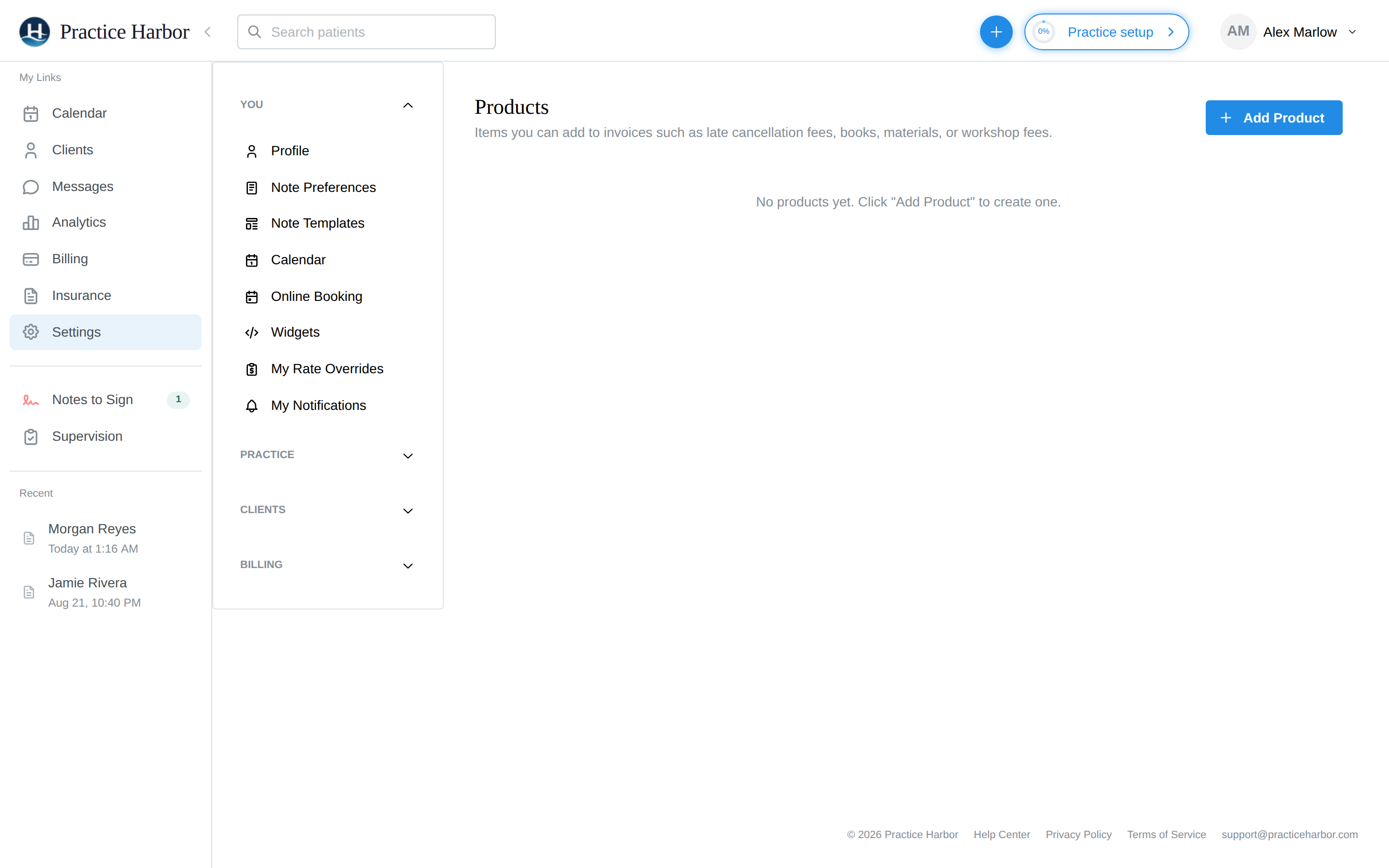
Adding a product
- Navigate to Settings > Billing > Products
- Click Add Product
- Enter the following:
- Product Name — a descriptive label (e.g., "Therapy Workbook")
- Price — the dollar amount
- Click Add Product to save
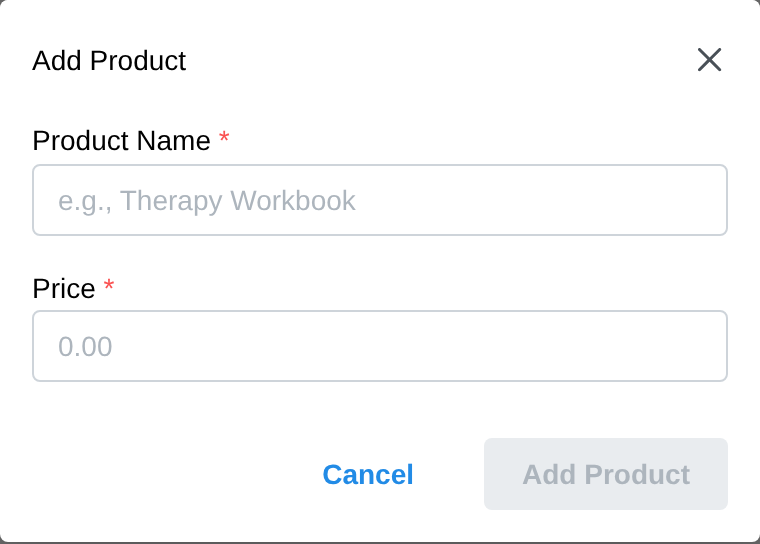
Editing a product
- Find the product in the table and click the pencil icon
- Update the Product Name or Price
- Click Save Changes
Deleting a product
- Click the trash icon next to the product you want to remove
- The product is deleted immediately
Deleting a product does not affect invoices that have already been created with that product. Only future invoice line items are affected.