Team messages
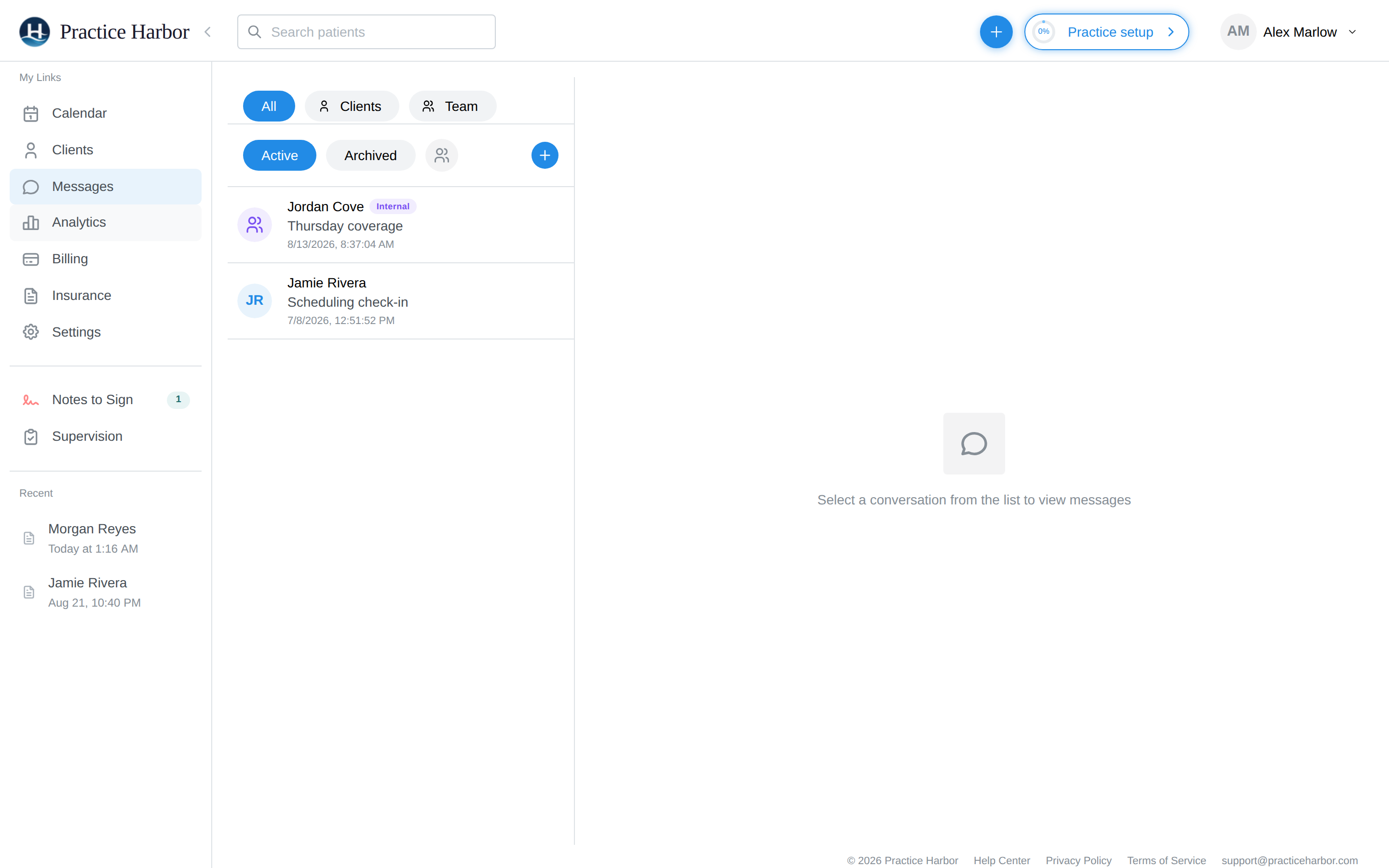
Messages isn't just for clients — you can message the other members of your practice from the same inbox: a quick question for a colleague, a handoff note for your biller, a heads-up from the front desk, a supervisor check-in. Team conversations are internal: they never appear in any client's portal, and a client can never be added to one.
In this guide, we'll cover:
- Starting a team conversation
- Telling team and client conversations apart
- Notifications
- Who can use team messaging
- FAQs
Starting a team conversation
- Go to Messages and click the + button
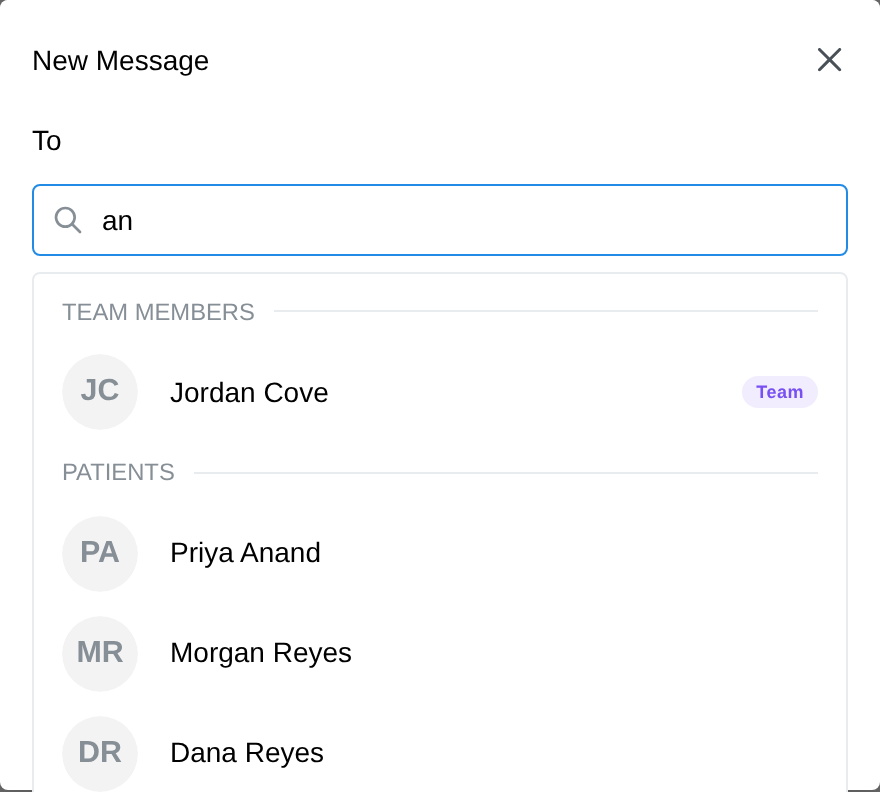
- Search for a name — your team members appear at the top of the results under Team Members, each marked with a purple Team badge (clients are listed separately below)
- Select a teammate. The dialog switches to New Team Message and shows the purple Internal notice — from this point the conversation is team-only, and client names no longer appear in the search
- To include more than one teammate, keep searching and selecting — each appears as a chip you can remove
- Optionally add a Subject, write your message, and click Send Message
Every recipient can reply, and everyone in the conversation sees every message — it works just like a group text among your staff.
Picking a recipient locks the conversation to that audience: choose a teammate and clients disappear from the search; choose a client and you're writing a regular secure message. A single conversation can never contain both a client and a teammate, so an internal note can't end up in front of a client.
Telling team and client conversations apart
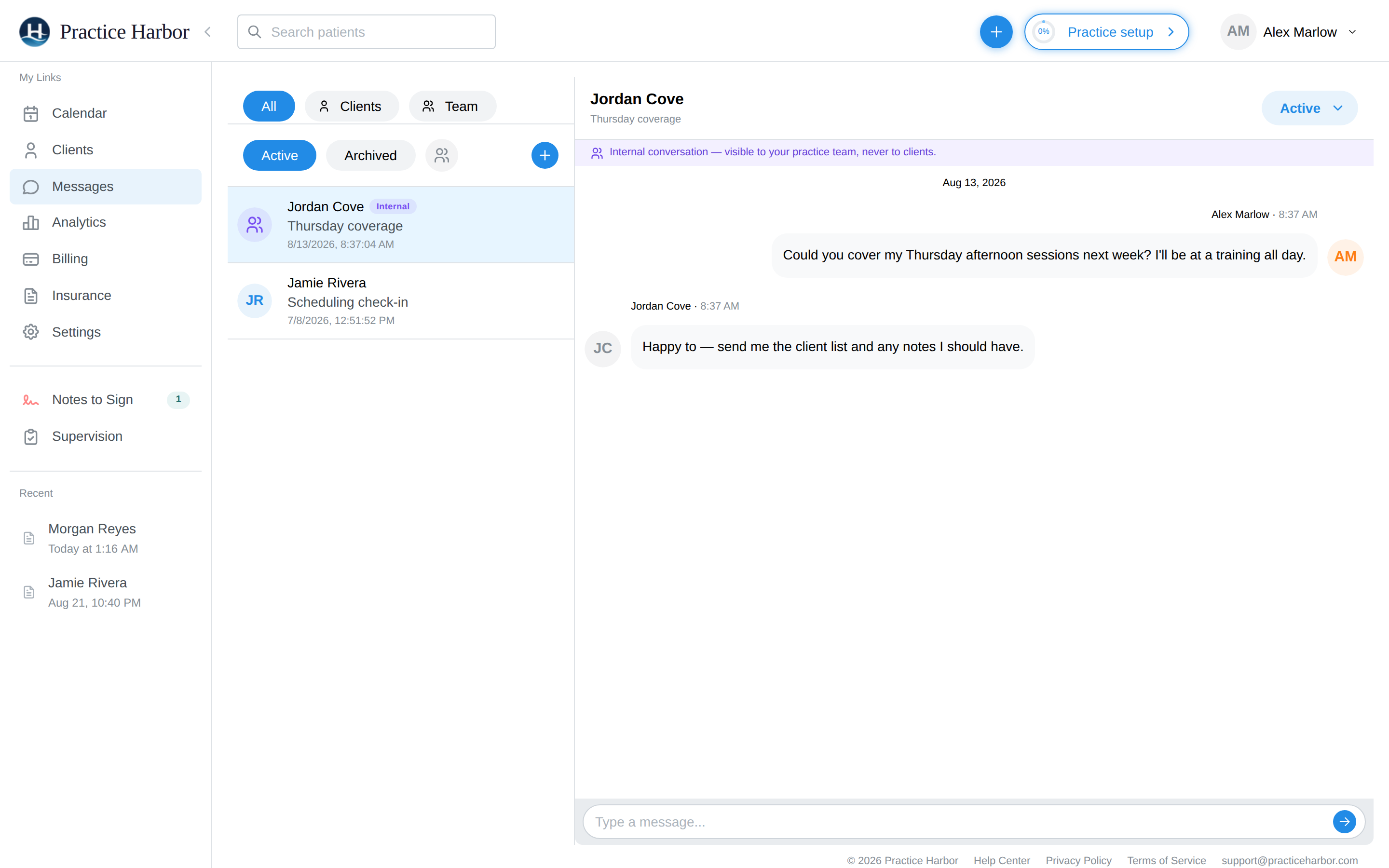
Your inbox shows everything in one list, newest activity first. Team conversations are marked three ways so they're unmistakable at a glance:
- A purple Internal badge next to the participants' names in the list
- A purple people icon instead of the client-style initials avatar
- Inside the conversation, a banner above the reply box: "Internal conversation — visible to your practice team, never to clients."
To see just one kind of conversation, use the filters at the top of the list: All (the default), Clients, or Team. The Active / Archived tabs work the same for team conversations — archive a finished thread to keep the inbox focused. So does Mark as unread (the ⋯ at the end of a row): read a colleague's note at night, mark it unread, and it is waiting with its red dot in the morning — for everyone in that conversation.
Notifications
Teammates are notified of new team messages the same way clinicians are notified of client messages: an email ("New team message from …") with a link that lands on the Team view of Messages, and a push notification if they use the mobile app. The email never includes the message content.
To stop receiving these emails, go to Settings → My Notifications and turn off the Secure Messages switch under Messaging — it covers client and team message emails together.
Who can use team messaging
Every member of your practice — clinicians, supervisors, billers, schedulers, and practice managers — can send and receive team messages, regardless of their access level. That makes it useful across roles:
- A biller can ask a clinician about a session's billing code without an email thread
- The front desk can flag a phone call or a scheduling change to the right clinician
- A supervisor can check in with a supervisee (for feedback anchored to a specific note, use the note's comment thread instead — see Supervision)
FAQs
Can clients ever see team messages?
No. Team conversations never appear in the client portal, are never attached to a client's chart, and a client can't be added to one — the compose search won't allow it. This holds even for conversations about a client.
Are team messages part of a client's record?
No — team conversations aren't tied to any client chart. It's fine to coordinate care in them (that's what they're for), but anything clinically significant should live where it belongs: in the note or the client's chart, not only in a message thread.
Can other people in my practice read my team messages?
The inbox only shows conversations you're part of. Treat team messages as practice communication rather than a private channel — like any practice record, they belong to the practice.
Can I take back a team message?
Yes — you can remove a message you sent, the same way as in a client conversation: Removing a message you sent. Your teammates see Message removed; messages can't be edited.
Do team messages work in the mobile app?
Yes. In the Practice Harbor for Clinicians app, team conversations appear in Messages with a reminder that they're internal to your practice. You can read and reply there, and start a new one by choosing one or more teammates as the recipients of a new message. You can also remove a message you sent by pressing and holding it. You get a push notification when a teammate messages you.
Can i attach files to a team message?
Not currently — team conversations are text-only. File attachments work in client conversations, where they file to the client's chart.