Secure messages
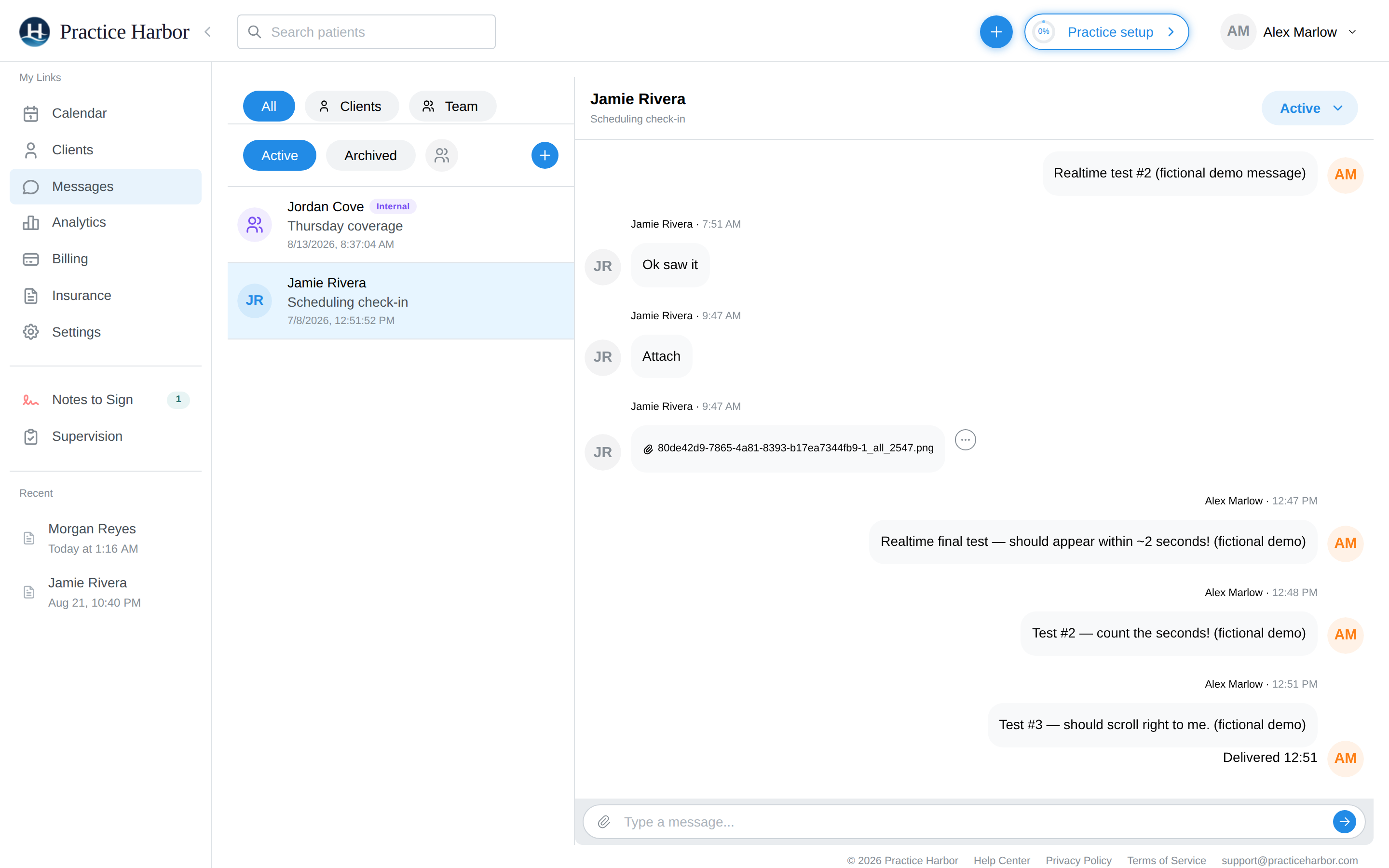
Message clients securely from Messages in the left navigation — conversations live inside the platform (not email), so PHI stays protected and everything is part of the record.
In this guide, we'll cover:
Starting a conversation
- Go to Messages and click the + button
- In the New Message dialog, search for the recipient — an individual client (under "Patients"), or a therapy group (under "Couples / Families") to reach every active member at once. Your own team members appear at the top of the same search — picking one starts an internal team message instead, and the two can never mix in one conversation
- For a client with guardian contacts, a Guardian visibility section appears: check a guardian to let them read and reply to this conversation in their portal; leave them unchecked and the conversation stays between you and the client. The default is sensible — shared when the client has no portal login of their own (the guardian is who reads the portal), private when the client logs in themselves. The choice is per conversation, so a billing thread can include a parent while a clinical check-in stays private.
- Optionally add a Subject (it helps keep threads organized, but only the message itself is required), write the first message, and click Send Message — the client is notified and replies from their client portal
You can also see conversations organized per client, and filter the inbox by participant.
Working the inbox
- All / Clients / Team — the inbox shows client and team conversations together in one list; use these filters to narrow it to one kind
- Active / Archived — finished conversations can be archived to keep the inbox focused; archiving doesn't delete anything
- Each conversation shows the client, subject, and latest activity; click to open the thread and reply from the composer at the bottom. Your sent messages show delivery/read state — and when a guardian read it, the thread says so by name ("Seen by [guardian] · [date]"), so you always know who on the family side has seen what
- Threads are topic-based — a client can have separate conversations for scheduling, billing questions, and clinical check-ins
- Mark as unread — opening a conversation clears its red dot. If you read a message late and want to deal with it in the morning, click the ⋯ at the end of its row and choose Mark as unread: the dot and the bold title come back, the Messages badge counts it again, and everyone else in the conversation sees it as unread too. The option appears only when the newest message was sent by someone else and has been read
Sending a file
- Open the conversation and click the paperclip in the composer (individual client conversations only — couple/family group conversations are text-only)
- Pick the file from your computer, optionally type a message, and send
The attachment appears as a chip in the thread — the client opens it right from the conversation, and clients can send you files the same way from their portal. Every attachment, sent or received, is also filed automatically on the client's chart as a Message Attachment on the Files tab; the chip's options menu offers Download and View in Documents.
Removing a message you sent
Sent something to the wrong client, or with a typo you'd rather not leave up? Click the ⋯ next to your own message and choose Remove message, then confirm.
- The client sees Message removed where the message was, but can no longer see what it said — in the portal, the phone app, or anywhere else. A file attached to that message is taken away from the client too; it stays on the client's chart for your practice
- You can still read what you removed: click the ⋯ on the removed message and choose View message. The original stays part of your practice's record
- Only the person who sent a message can remove it. You can remove from the web app or the Practice Harbor phone app — in the app, press and hold your message and choose Remove message
- Sent messages can't be edited. To correct something, remove it and send a new message
- Removing doesn't recall an email notification — but those never include the message text
Who can message
Messaging follows team access: clinicians message the clients they have access to. Clients can only message your practice — never each other.
Good practices
- Secure messaging is for logistics and between-session support — it's not a crisis channel. Make sure clients know how to reach emergency help; set expectations for your reply time
- Message history is retained, so conversations are part of your documentation trail