The files tab
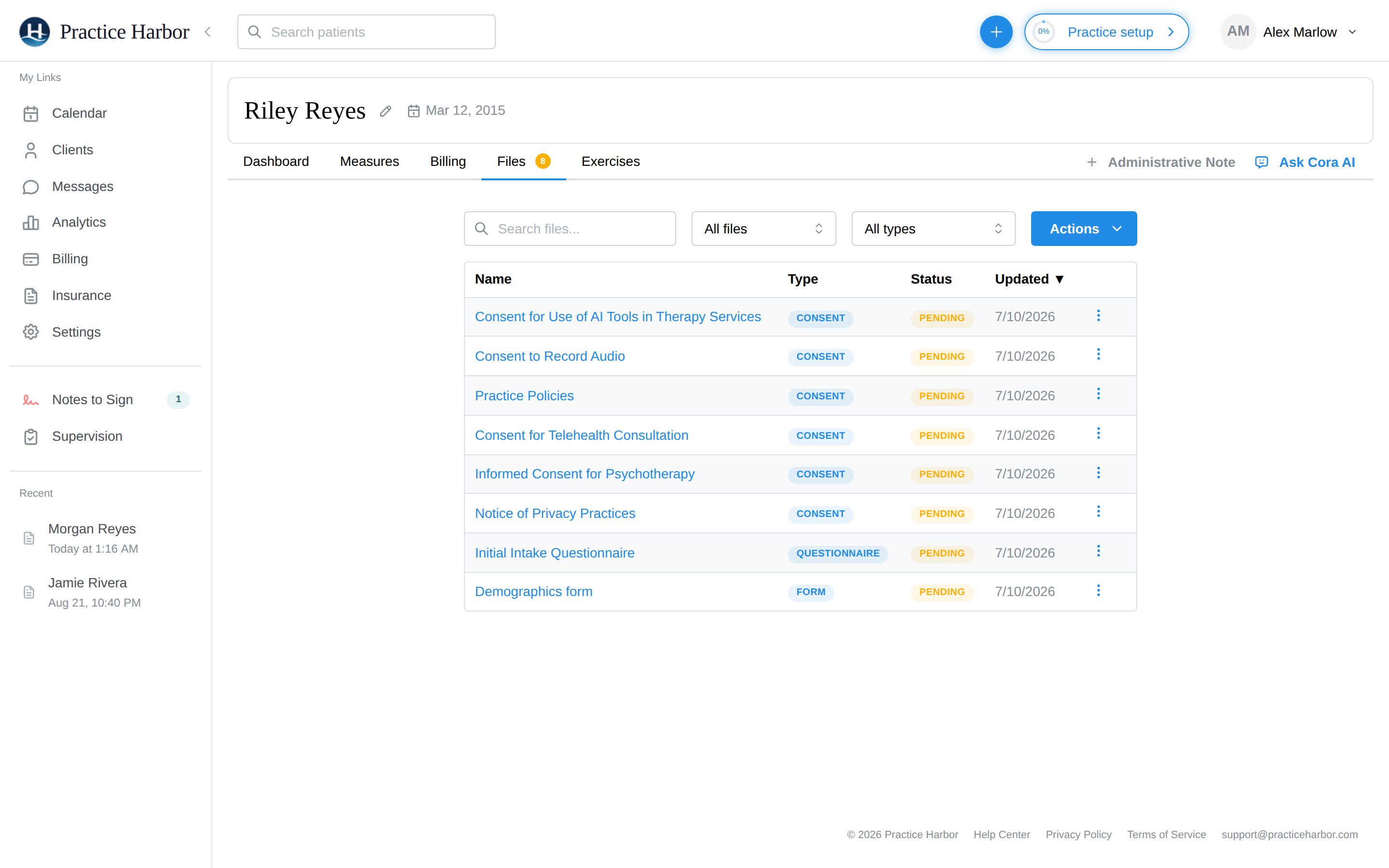
The Files tab on a client's chart answers "where's their paperwork?" in one table: every assigned form with its completion status, every uploaded document, and every recurring measure schedule. The tab's badge counts what's still pending.
In this guide, we'll cover:
- Reading the table
- Uploading a file
- Chasing unfinished paperwork
- Managing rows
- Sharing forms with the client
- FAQ
Reading the table
Each row is badged by type (Questionnaire, Consent, Assessment, Practice Upload, Client Upload for files the client sends through their portal, Message Attachment, Medical Records, Payment, …) and status:
- Pending (yellow) — assigned to the client, not finished yet
- Completed (green) — done; click the name to read the response, or download it as a PDF
- Scheduled (violet) — a recurring measure's schedule (the individual sendings appear as their own rows)
- Uploaded (gray) — a document you added
- On File (green) — the client's saved payment method
Use the search box and the two filters (status, type) to cut long lists down; click column headers to sort. For couples and families, the group's Files tab merges every member's files with a Member column — actions live on each member's own tab.
Uploading a file
- Click Actions → Upload file and pick the document (prior records, correspondence, a scanned form).
- It lands on the chart as a Practice Upload — rename or delete it later from its row menu.
Uploads are part of the clinical record, visible to your team — they are not shown to the client. (There's no way to publish an uploaded file to the client's portal; sharing sends forms to complete, not existing files. To get a file to a client, attach it to a secure message instead.)
Files exchanged in secure-message conversations are filed here automatically as Message Attachment rows — unlike practice uploads, the client has these too, in the conversation where they were sent.
Chasing unfinished paperwork
Pending rows are the to-do list, and reminders are built in:
- One form: its row menu → Send reminder emails the client about that item.
- Several at once: Actions → Send reminder opens the "Send reminders" list of everything pending — one email covers them all.
- Automatic nudges before each appointment are the per-client Incomplete document reminders switch — see Reminders.
Managing rows
From a row's ⋮ menu: Download (uploads download as-is; completed forms generate a PDF), Rename (uploads only), and Delete (with confirmation). A Scheduled recurring measure offers End recurrence instead — "Already-sent measures are kept; no new ones will be sent."
Sharing forms with the client
Actions → Share with client opens the document-sharing wizard — the way to send an additional questionnaire, consent, or measure outside a full intake. See Sharing more documents later.
FAQ
I uploaded a file from an appointment — why isn't it here? The appointment panel's Upload File is a documentation tool: it turns an audio file or session document into a draft note on that appointment. It doesn't store the file on the Files tab — upload chart documents here instead.
Can I stop a form I sent by mistake? Delete its pending row (⋮ → Delete). Completed responses are part of the record — they can be deleted, but the client has already seen and submitted them.
What fills the "Assessment" type? Scored measures — sent once or on a schedule; their scores also chart on the Measures tab.