Prescreener questions
The prescreener is a short questionnaire that prospective clients answer as part of an appointment request on your public booking page (and, optionally, your website contact form). Their answers arrive with the request, so you accept or decline with context instead of scheduling a consult blind.
It's for people who aren't your clients yet. For clients you've already created, send intake forms instead.
In this guide, we'll cover:
Turn it on
- Go to Settings → Prescreener (under Clients).
- Under Add prescreener to, switch on Appointment requests from new clients. Switch on Contact form too if you want the same questions on your website's contact widget.
- If you see "No prescreener questions configured," click Load default questions — a starter set covering reason for care, availability, insurance, and preferences.
- Click Save at the top right. Nothing on this page — switches, questions, or edits — takes effect until you save.
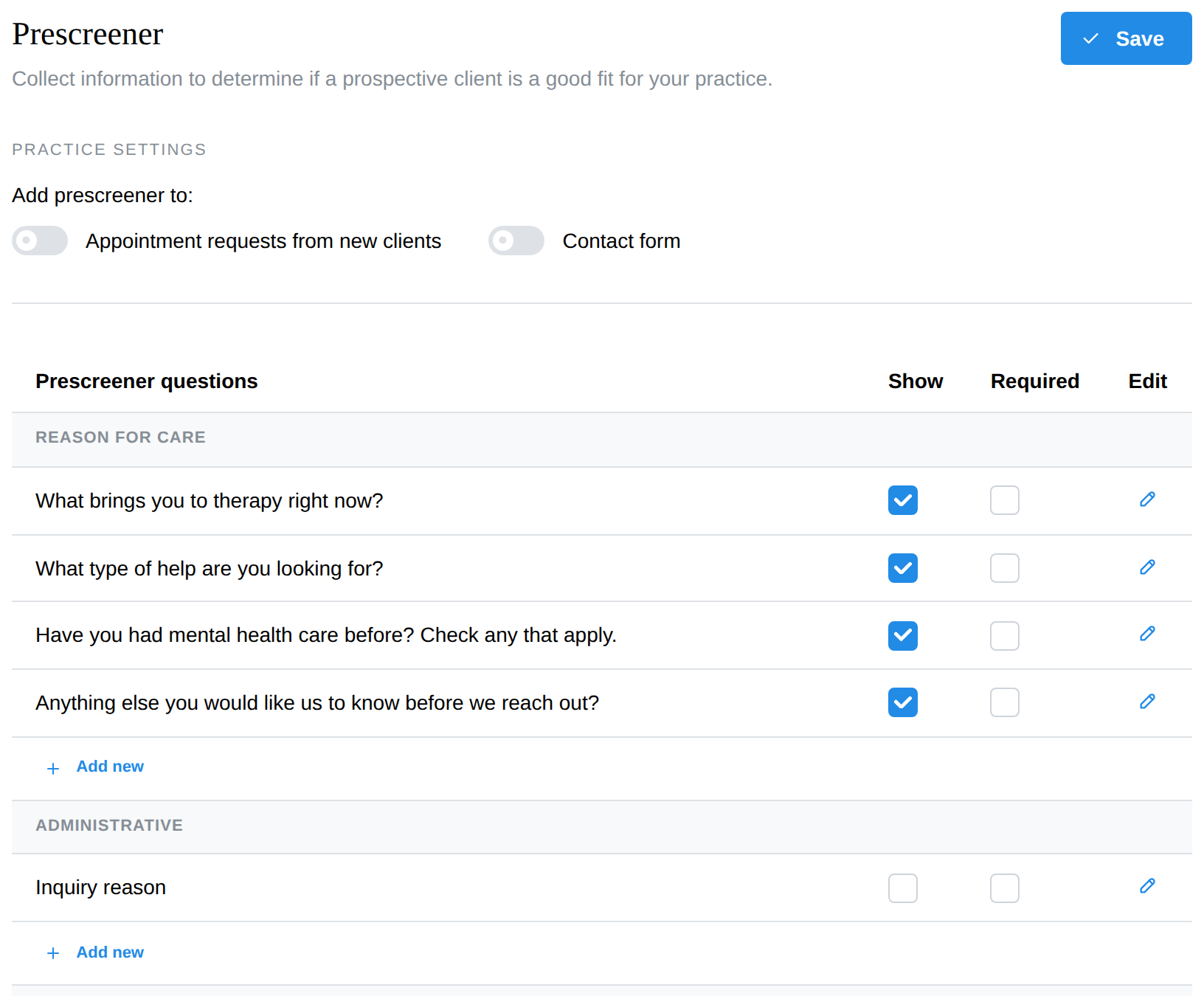
That's enough to start: the questions now appear as the Screening step of every new-client booking request. With Contact form on, the questions set to Contact form only or Both appear on your contact form under the message box, and a message can't be sent until the required ones are answered. The contact form keeps its questions even while Accept Requests from New Clients is off.
Edit the questions
Questions are grouped into five categories: Reason for Care, Administrative, Billing & Payment, Client Preferences, and Demographics.
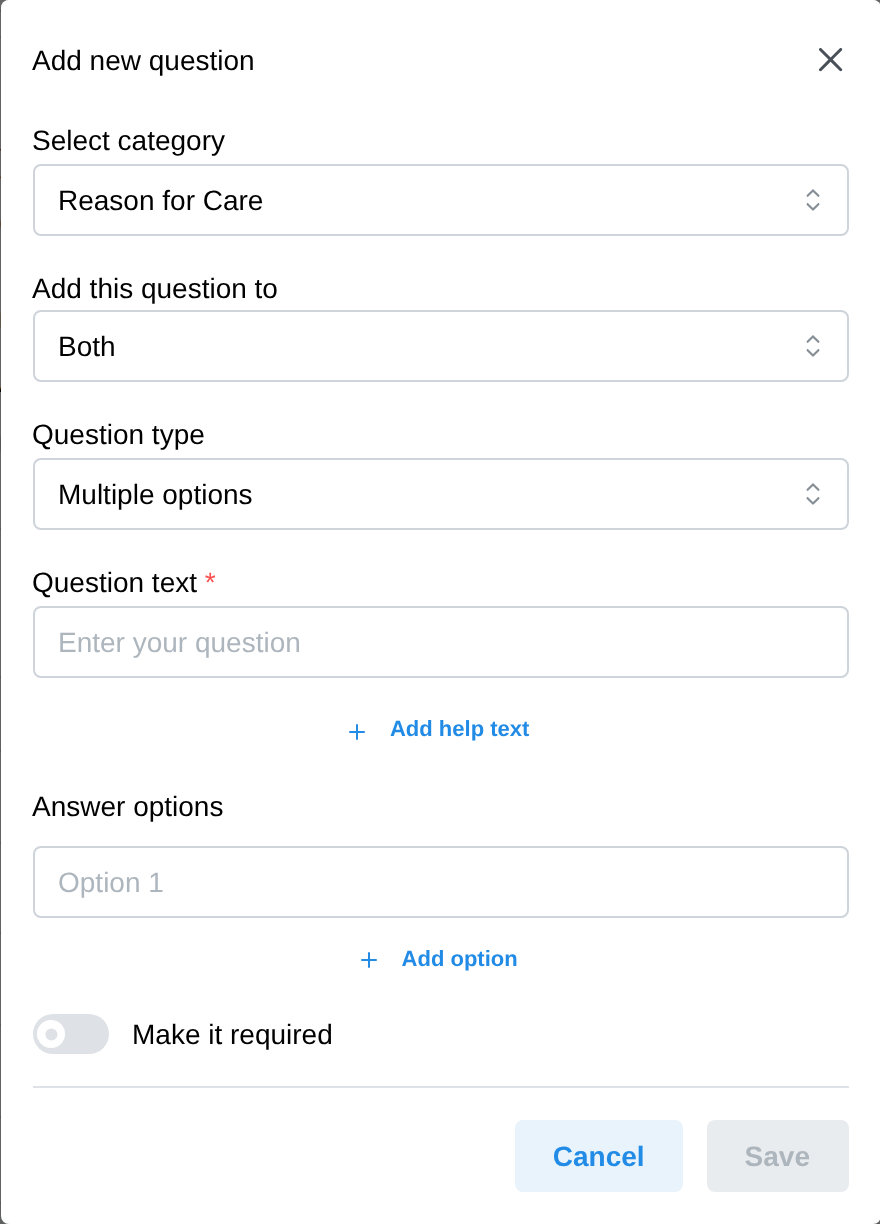
- On Settings → Prescreener, find the category and click Add new under it (or the pencil in the Edit column to change an existing question).
- Choose the category and where to show it (Add this question to — Appointment requests only, Contact form only, or Both).
- Pick a Question type: Multiple options (pick several), Single option (pick one), Dropdown, Short response, Long response, or Date. For the first three, add the answer options underneath.
- Type the Question text. Add help text if the question needs a hint.
- Tick Make it required if a request shouldn't go through without it.
- Click Save in the dialog, then Save at the top of the page.
The Show and Required checkboxes on each row switch a question on or off and make it required without opening it. To remove a question you added, open it and click Delete. The default questions can't be deleted — untick Show to hide one instead. Changes apply to the next request once saved — nothing already submitted is affected.
Where the answers go
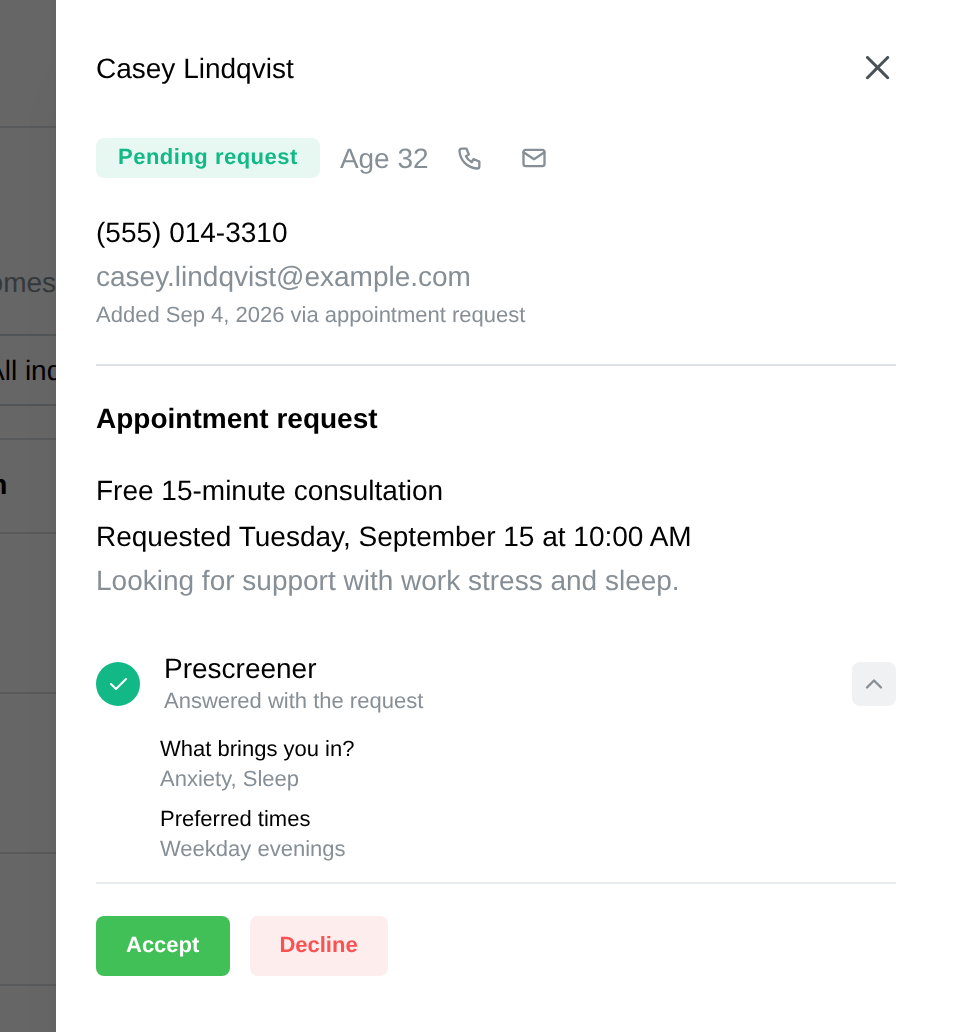
Each new-client request shows the prescreener answers alongside it — on the request card in your review list, and in the request's panel on the Inquiries page. When you Accept the request, the client record is created and the request (answers included) stays linked to it; afterwards the Inquiries panel's Intake progress checklist keeps a Prescreener row you can open to reread the answers. See Reviewing appointment requests.
Contact-form answers arrive the same way: they're listed in the notification email you get for the message, and under Prescreener in the message's panel on the Inquiries page. When you click Add as client, the answers are saved to the new client's record, and the Intake progress checklist shows them as answered on the contact form.
The built-in Demographics questions also fill in the new client's profile for you, so you don't retype them. This happens when you Accept a request, decline it and keep an archived client, or click Add as client on a message:
- Date of birth, when it's written as a full date such as 03/04/1991. Anything else stays in the saved answers for you to check.
- What name should we call you? becomes the client's preferred name.
- Gender fills in Gender identity. "Prefer Not To Say" is saved as such.
- Sex at birth (Male or Female) fills in the Sex used on insurance claims. It's hidden until you tick Show.
A date of birth typed on the booking form itself always wins over the prescreener answer, and nothing is copied onto a client who already exists. Questions you write yourself stay in the saved answers only.
Troubleshooting & FAQ
A client called instead of booking online — how do I enter their prescreener answers? You don't; the prescreener only runs on the public booking page. For a phone intake, add the client with the + button and send them the intake packet — the demographics form writes straight to their chart. Anything you learned on the call goes in a quick chart note.
The prescreener isn't showing on my booking page. Two switches: Appointment requests from new clients here, and the practice-wide Accept Requests from New Clients at Settings → Online Booking. Both need to be on.
The prescreener isn't showing on my contact form. Check that Contact form is switched on here and that you clicked Save, then that at least one question is set to Contact form only or Both with Show ticked. Questions set to Appointment requests only never appear on the contact form. To check, open the Contact form tab of Settings → Widgets and click Preview.
Can I make it optional? Yes — leave Make it required unticked on every question, or switch the prescreener off entirely; the booking flow simply skips the Screening step.