Couples & family therapy
When you work with a couple or family, each person keeps their own client record, and Practice Harbor ties them together as one unit for scheduling, notes, billing, and paperwork — you'll see this unit called a "group" in the app. This guide covers creating one, working from its profile, editing members and billing, and sending intakes to multiple people.
This page covers couples and families: related people treated as one clinical and billing unit (partners, a family) — one shared note, one bill. Group therapy — a roster of independent clients seen together, each billed on their own — is a different modality with its own setup; see Group therapy.
Creating a couple or family
Groups are created from the New Client drawer (there's no way to create one from a profile page):
- Click + → New Client and choose the Couple / Family type.
- Pick the Type — Couple or Family (a family can be any size from two people up, e.g. a parent and child).
- Fill in each member's tab — or click Add Existing Client to search your practice and reuse someone's existing record:
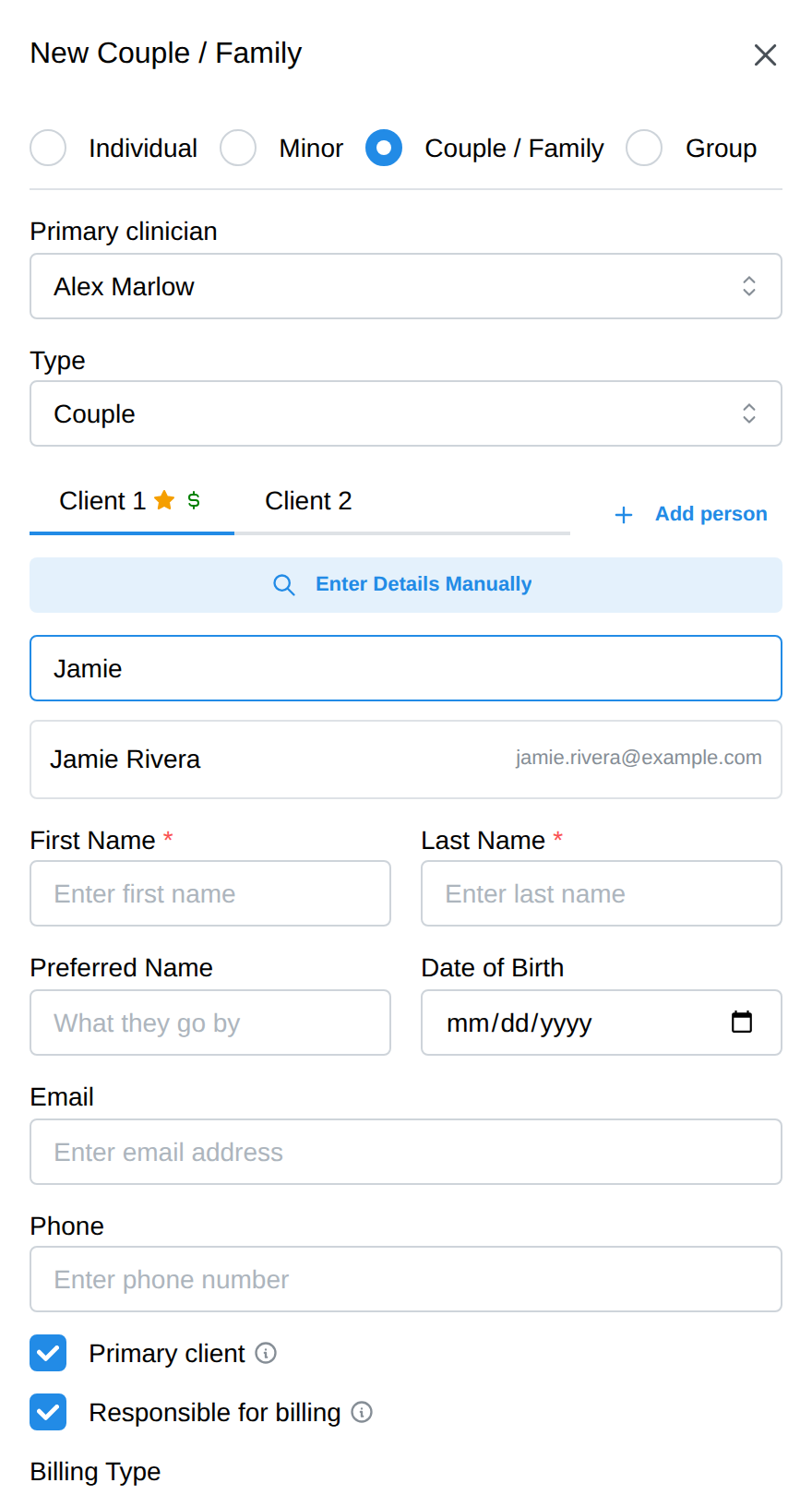
- Tick Responsible for billing on the paying member, choose the group's billing type, and click Create Couple (or Create Family).
Full field-by-field details are in Adding a client.
Working from the group profile
Open the group from the Clients page (badged Couple or Family) — its profile works like an individual client's, at the group level:
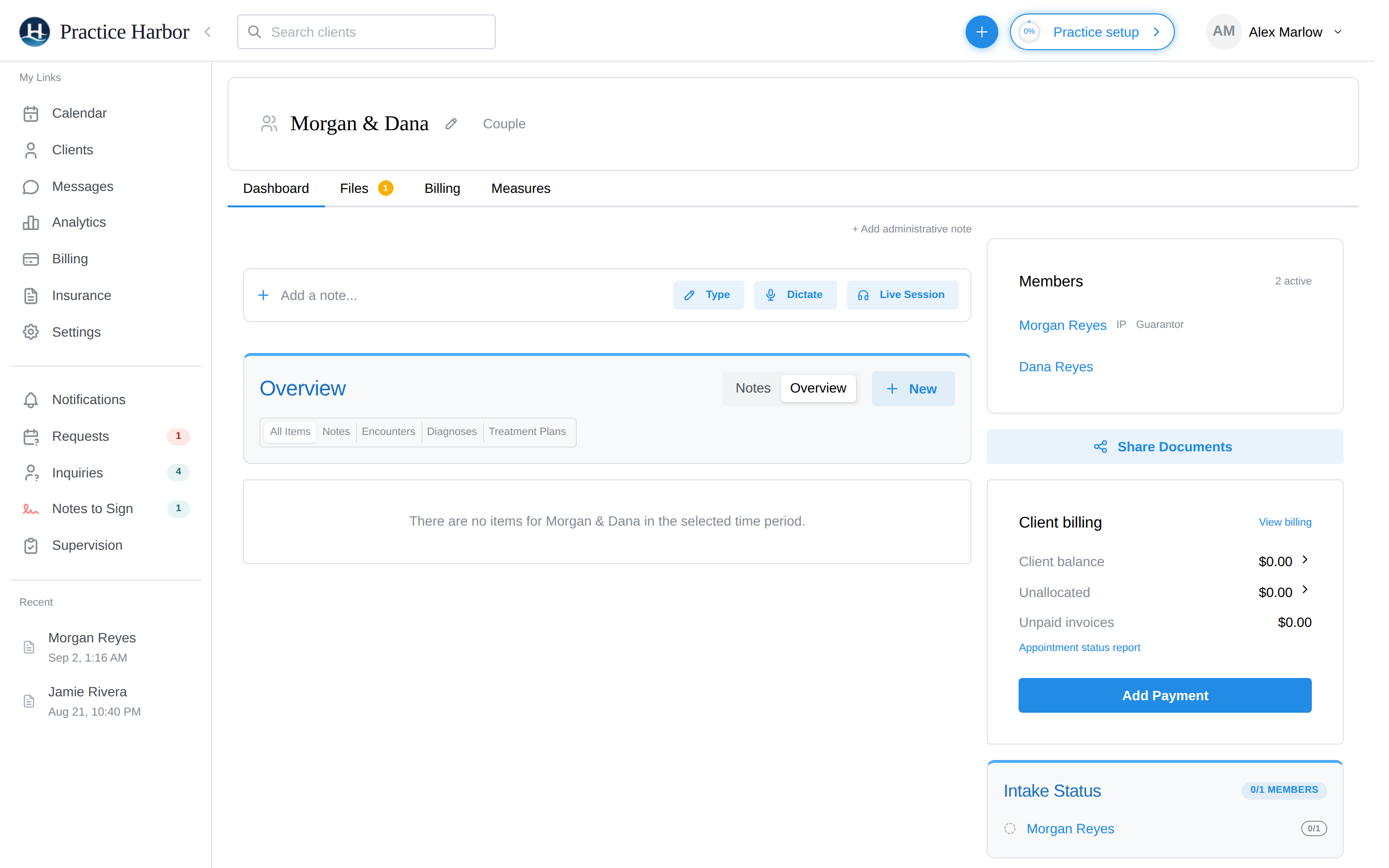
- Notes for the couple or family start from the note bar (Type, Dictate, Live Session) and live on the group's chart — see group notes below. Like an individual chart, the notes list switches between Notes and Overview (the dated feed of sessions, notes, diagnoses, and plans) views.
- The Members card lists everyone with links to their individual records. The small IP and Guarantor labels mark the primary (identified) client and the payer.
- Share Documents sends paperwork to members — see sharing intakes.
- Client billing summarizes the group's balance, unallocated payments, and unpaid invoices, with Add Payment right there. Below it sit an Insurance card (when insurance is enabled — the primary client's coverage) and Invoices and Billing documents cards linking to the group's billing.
- Upcoming Appointments lists the group's sessions, with Record Session and Schedule Appointment buttons.
- Tabs across the top: Files (group documents, with a pending badge) and Invoices (when billing is enabled for your practice).
Notes and documentation for groups
Record or write notes from the group profile and they attach to the group's chart — not to any individual member. The note templates include Couples Therapy and Family Therapy formats, which capture the interaction and per-participant content rather than a single-client narrative. The group also has its own diagnosis and treatment plan area (New → Diagnosis and Treatment Plan from the notes header). One thing to remember: paperwork shared with an individual member (say, a PHQ-9 for one partner) lands on that member's individual record, while session documentation stays on the group's.
Scheduling group sessions
Book a group session exactly like an individual one — in the appointment form's client search, groups appear under Couples / Families / Groups.
The appointment shows the group's name on the calendar, and its billing follows the group's primary client (whose diagnosis goes on documents and claims) and guarantor (who pays). The group's default service and rate pre-fill; set those on the group's Billing tab.
Editing a group
Click the pencil icon next to the group's name on its profile. The edit page has three tabs (the first is named for the group type — e.g. Couples Therapy Info, then Clients and Billing), each saving explicitly; you'll be warned before leaving unsaved changes.
Group name, type, and deactivation
- Group Name — an optional display name (otherwise the members' first names are used, e.g. "Morgan & Dana").
- Group Type — Couples Therapy or Family Therapy.
- Deactivate Group (bottom left) ends the group: "The group is removed from your client list; its billing history and the individual client records are preserved." Nothing is deleted — members' individual records and all billing history stay intact, and the members remain your clients.
Members, primary client, and guarantor
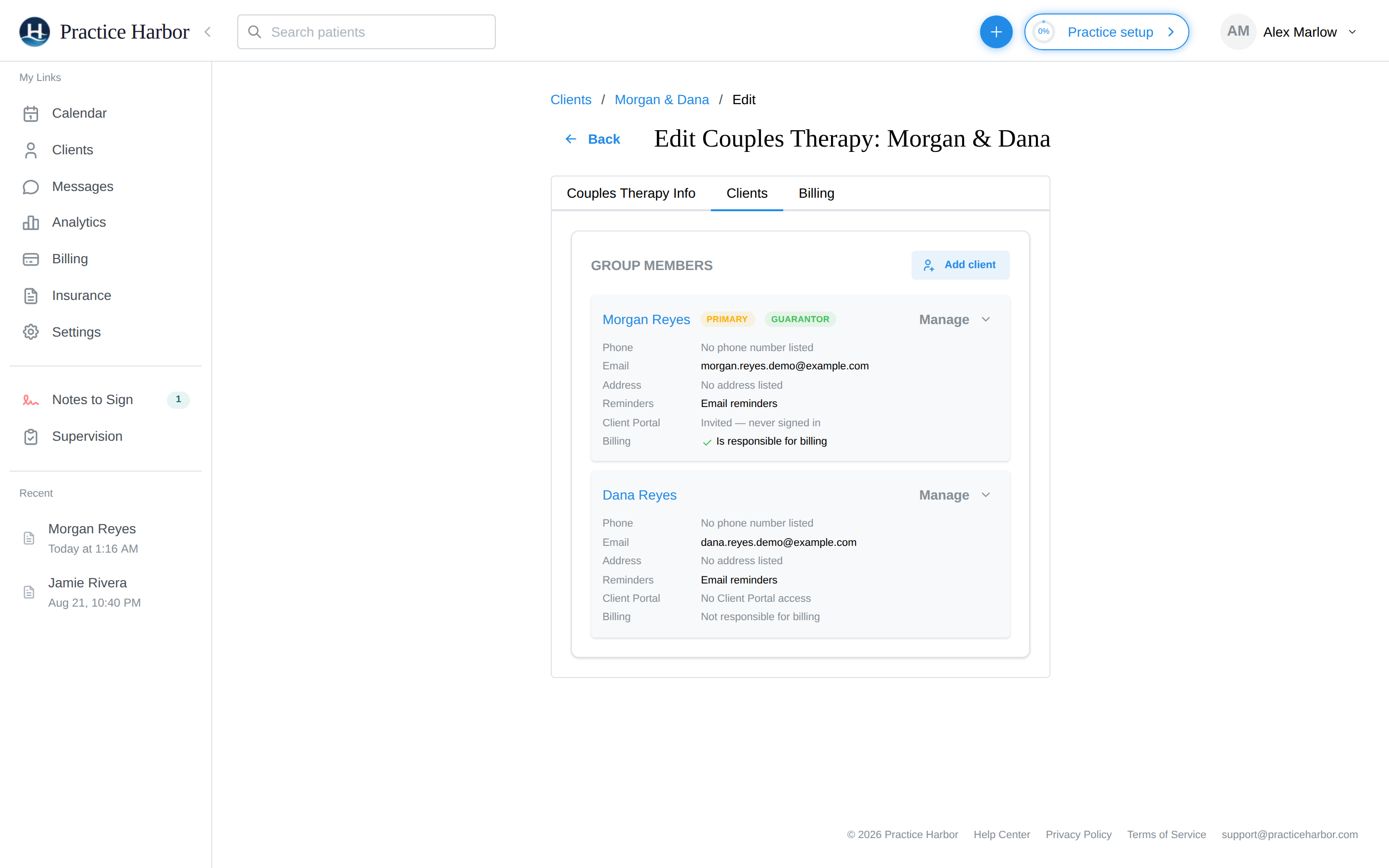
- Primary Client — "Carries the Diagnosis for this couples therapy on documents and insurance claims." Switching it opens a confirmation dialog: the change applies going forward (existing notes, claims, and superbills are not rewritten), upcoming booked sessions move to the new primary client automatically, and you choose which current diagnoses — if any — carry forward to the new primary client. You can also record a reason for the change.
- Guarantor — "Financially responsible for this couples therapy's sessions."
- Group Members — Add client brings someone in (an existing client or a returning former member); each member's ⋮ menu offers Set as Primary, Set as Guarantor, and Remove from group. Removing a member keeps their individual record and the group's history; if they were the primary client, the role moves to another member automatically.
Billing for the group
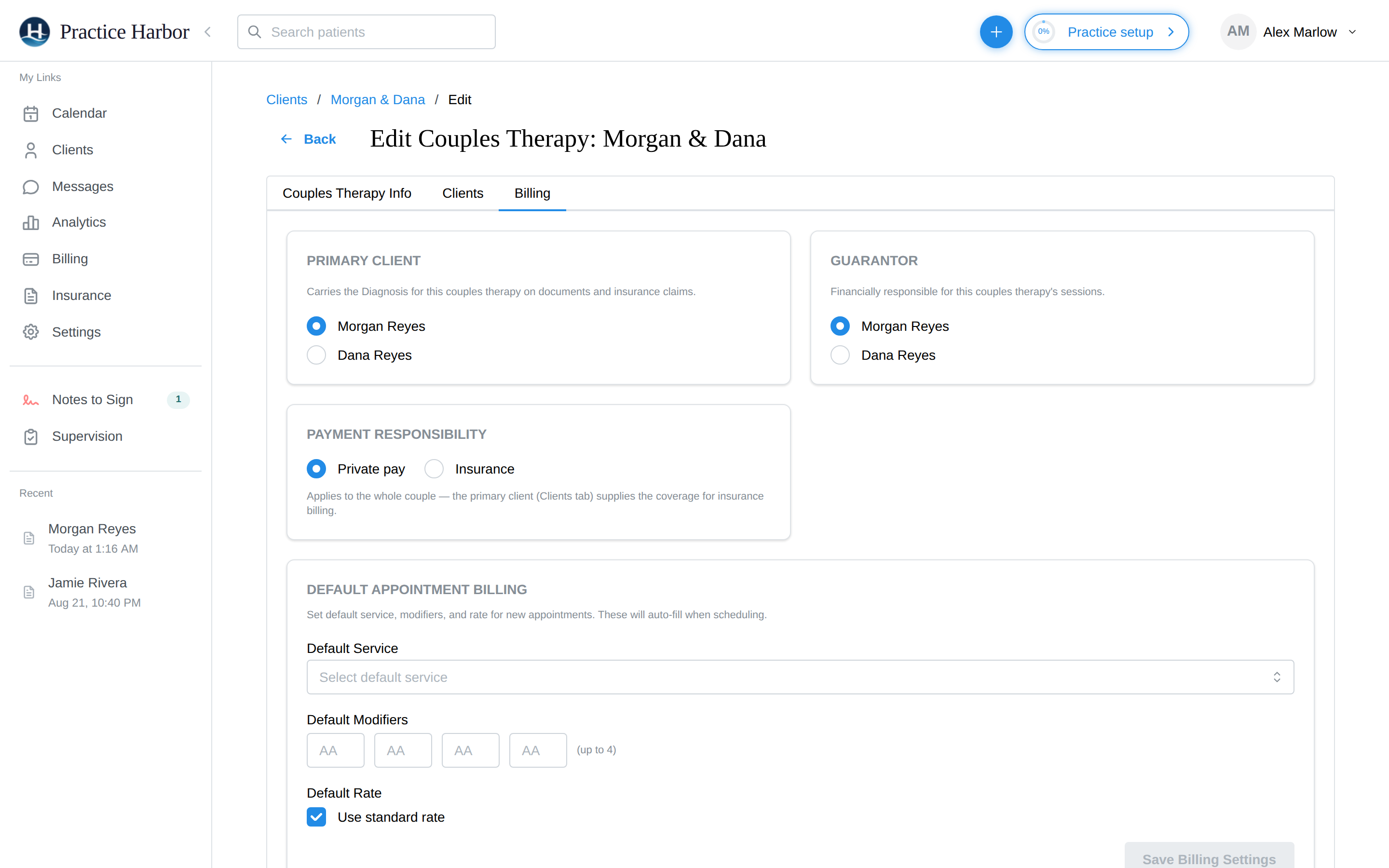
Four cards (this tab needs billing or admin access):
- Billing Settings — per-member billing links ("Billing settings are managed per client"), jumping to each member's own Payment & Insurance tab.
- Default Appointment Billing — the group's Default Service, up to four Default Modifiers, and a Default Rate (untick "Use standard rate" for a custom amount). These auto-fill when scheduling the group.
- Custom Service Rates — per-service Group Rate overrides, e.g. a sliding-scale couples rate; blank rows use the practice default.
- Group Invoices — a shortcut to the group's billing page.
Sharing intakes with a couple or family
Share Documents on the group profile (or the intake workflow when creating the group) walks member by member:
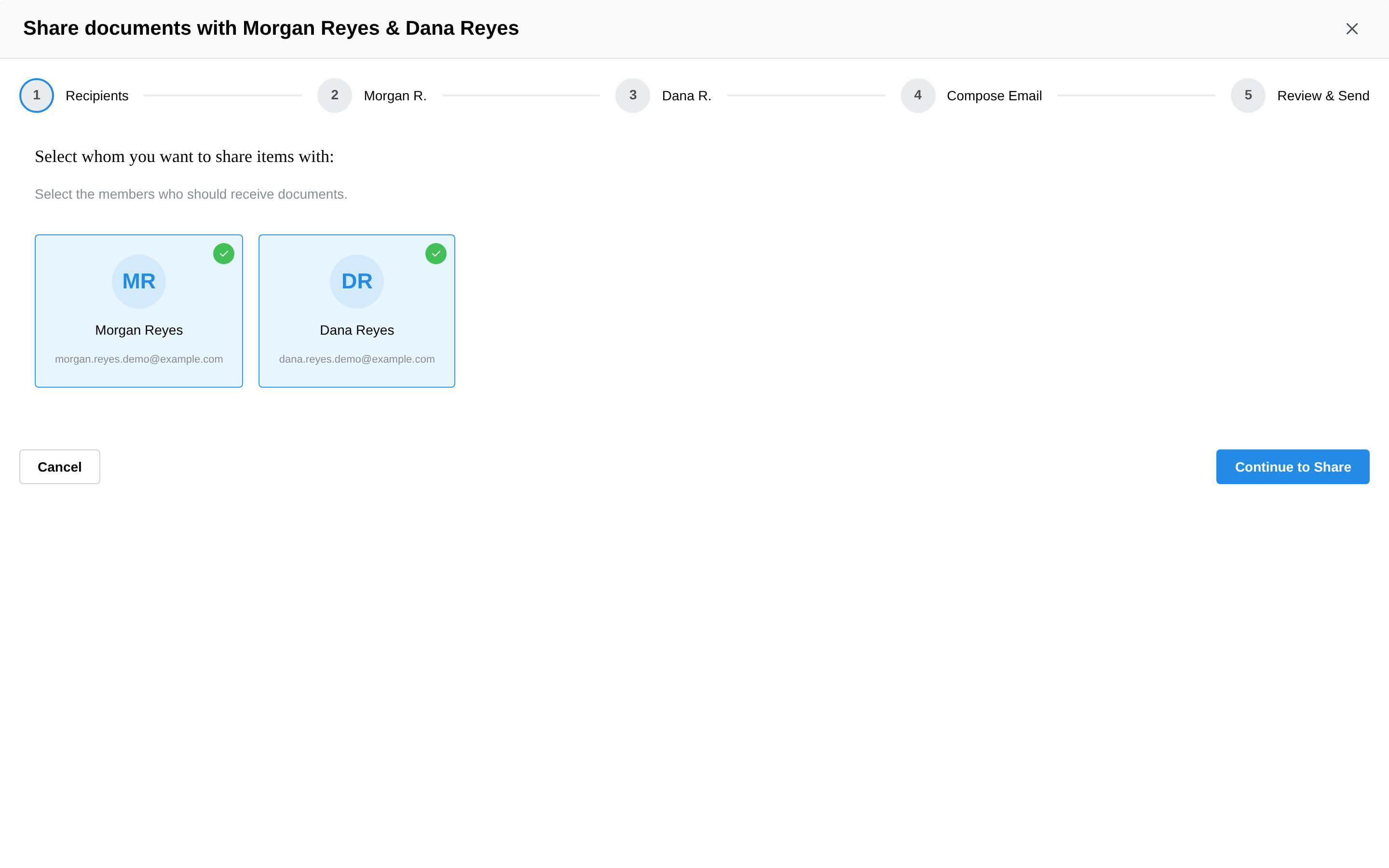
- Each member gets their own selection of questionnaires, consents, and measures — "Items shared here are only visible to" that member, in their own portal account.
- A member without an email can't receive portal items; the wizard flags them ("No email address on file") with an Add Email shortcut.
- Minor members route to a guardian: the wizard sends their items to the guardian contact ("…who receives Client Portal access on [the minor]'s behalf"). If a minor has no guardian contact, add one on their chart first.
- Two members sharing one inbox (a common couples setup) is fine — the wizard notes that the shared address receives one email per member, each opening that member's own portal profile.
- Every member gets their own customizable email; Share & Send Now delivers everything.
The couples & family card
On each member's individual profile, a Couples & Family card lists the groups they belong to — the group type, the other members ("With: …"), and the billing arrangement (who's the IP and guarantor). It links back to the group profile, and only appears once the client is in a group. Clients can belong to more than one group (say, couples work and a separate family group).
FAQ
Whose insurance is billed for couples sessions? The primary client's — their diagnosis carries the claim. The guarantor covers what insurance doesn't. Both are set on the Clients tab.
Both partners have insurance — can I bill each partner's plan? No. A couples session is one service, billed once, under the primary client's insurance. Submitting the same session to both partners' plans (or alternating sessions between plans to spread the cost) is considered insurance fraud by payers. Pick the plan with the better couples/family-therapy coverage as the primary client's, and keep it consistent. If the other partner also works with you individually, those separate individual sessions bill under their own insurance as usual.
Can I turn a couple into a family? Yes — Add client on the Clients tab, and change the Group Type on the Info tab. (In the creation form, Add person does the same — adding a third person switches the type to Family automatically.)
What happens to notes if we deactivate the group? Nothing — the group chart and billing history are preserved; the group just leaves your active lists. Deactivating a group does not deactivate its members.
A member left the couple — should I remove them or deactivate the group? If therapy continues with the remaining member(s) in a different shape, remove the member (their record stays). If the couple's work is simply over, deactivate the group.