Managing the client portal
The client portal is your client's side of the practice: appointments, intake paperwork, secure messages, and billing, in their browser with their own login.
In this guide, we'll cover:
- Setting up your portal URL
- Inviting a client to the portal
- What clients see inside
- Contact and guardian portal access
- Offering the portal in Spanish (beta)
- Multi-practice support
- Troubleshooting
The For Clients section is written directly to your clients — send them Getting Started with Your Portal with their invitation, or link a specific guide (forms, video sessions, payments) when someone gets stuck.
Setting up your portal URL
Your practice's portal lives at a web address based on your practice's portal URL (a short practice identifier). Set it once in Settings → Patient Portal — several client-facing features (including the intake workflow and the booking widget) hang off it.
Inviting a client to the portal
- Open the client's profile and click Edit on the Client info card.
- Go to the Portal tab — the Portal Access card shows their current status (for example, No Portal Access).
- Click Send invitation, choosing which of their emails to use.
- The client receives an email with a Sign in button — a one-time link that signs them straight in, no password to set. (Sending intake forms does all of this automatically.)

If an invitation goes stale, Resend invitation; if access was disabled, Re-enable & send invitation. Every email the portal sends — invitations, document reminders, new-message notices, bills — carries its own sign-in link (one use; 7 days for invitations and reminders, 24 hours for message notices), and the sign-in page itself offers Email me a sign-in link. Clients who prefer a password can still set one from Sign in with a password instead on that page, and Send Password Reset on the Portal tab still works — for a client who has already signed in before, that email leads with a sign-in link and keeps the reset link under it.
What clients see inside
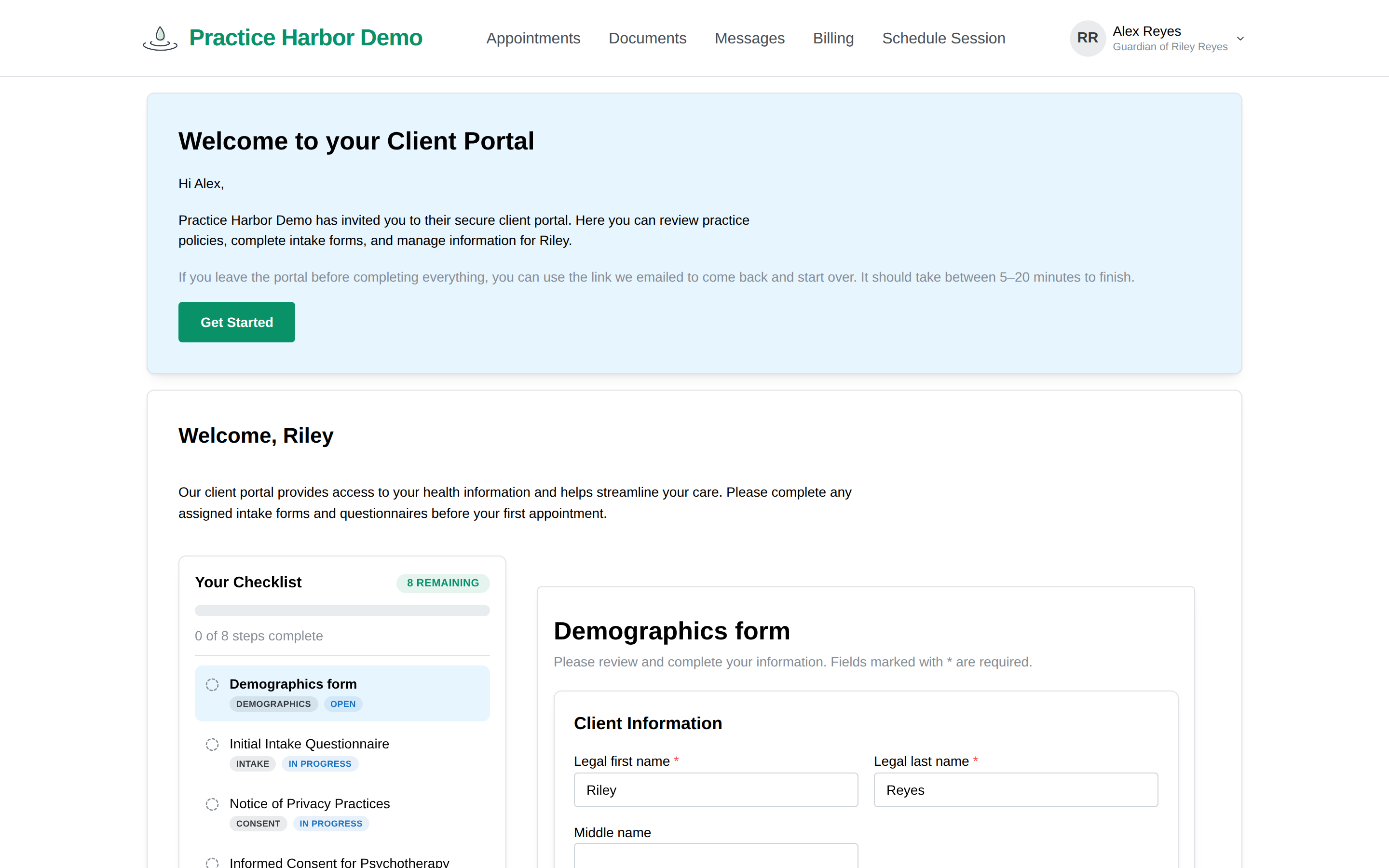
The portal's navigation is four areas — Appointments, Documents, Messages, and Billing — plus a Schedule Session link when appointment requests are allowed:
-
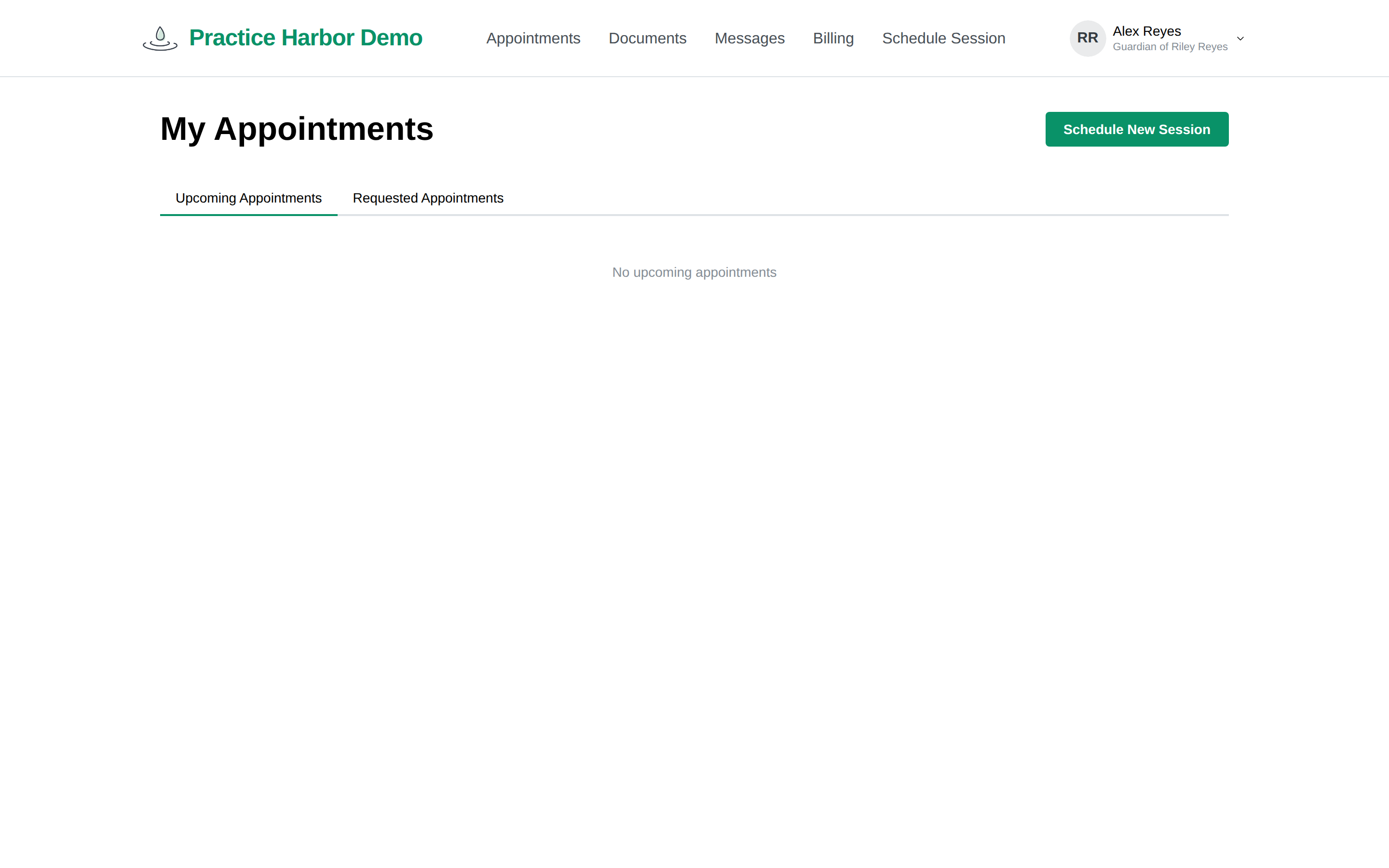
Appointments ("My Appointments") — upcoming and requested sessions. Booked telehealth sessions show a Join Session button; any session offers Add to Calendar. Requested times show as "Pending Review" until you accept, and the client can withdraw a request.
-
Documents — their paperwork home: one checklist covering intake forms, consents, assessments, the demographics form, and (if requested) adding a payment method, with a single progress bar. Each item opens beside the checklist; completed items stay viewable. This is where assigned intake forms are filled out and consents signed.
-
Messages — secure messaging with your practice.
-
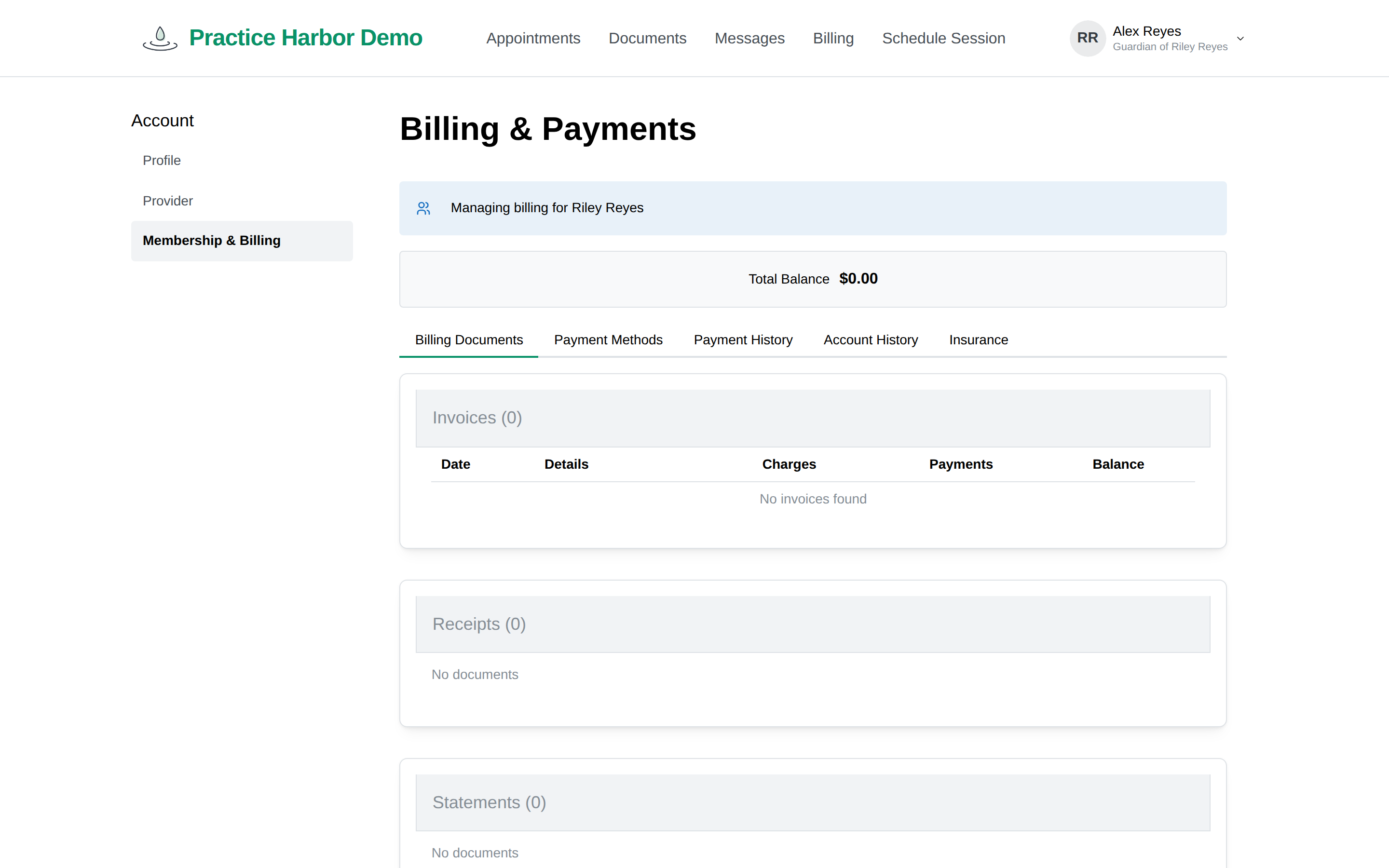
Billing ("Billing & Payments") — invoices with Pay Now, Superbill, and Download actions, payment history, saved cards, AutoPay status, and read-only insurance info ("To update your insurance information, please contact your healthcare provider.").
One boundary worth knowing: the portal shows clients forms to complete and their own billing documents — it is not a general file-share. A PDF you upload to the client's Files tab stays internal.
Contact and guardian portal access
Contacts (parents, guardians, partners) get their own logins with per-contact permissions controlling which of the four areas they see. A guardian signs in as themselves — the account menu shows "managing" the client — and a parent with several children in the practice switches between them under Managed Profiles. See Contacts & guardians and Minor clients.
Offering the portal in Spanish (beta)
Clients can switch the portal between English and Spanish once you turn the option on. It is off until you do.
- Go to Settings → Patient Portal.
- Under Localization, tick Clients can choose their portal language.
- Click Save Changes.
Your clients then see a globe with English / Español at the top of your portal, starting on the sign-in page. Their choice is remembered on that device.
When does it open in Spanish on its own? When the client's phone or browser is set to Spanish, or when you have set their Preferred language to Spanish on their chart (client → Edit). A choice the client made themselves always wins. A parent or guardian's portal follows the parent's own choice, not the child's Preferred language.
What is in Spanish: the whole client portal — signing in, requesting and viewing appointments, the documents and forms pages, billing and payments, messages, video sessions and the public booking and contact pages. Dates show the month as a word; times stay in the familiar "10:00 AM" style. The reflection guide is still in English.
What stays in the language you wrote it: your intake forms and consent documents, invoices and statements, and the emails and text reminders clients receive. You can rewrite your email templates in both languages under Settings → Client Notifications.
Sentences a client agrees to or pays under — the consent checkbox, signature lines, payment messages — appear in Spanish with the English shown underneath. The English is the official text; the Spanish is there to help, until a professional healthcare translator has reviewed it.
The Spanish is Mexican Spanish in the formal usted. If you or a bilingual colleague see wording your clients would stumble on, tell us and we will change it.
Multi-practice support
If a client sees providers at more than one practice on the platform, one login covers all of them — after signing in they land on a "Choose your practice" picker.
Troubleshooting
"I never got the invitation." Check spam first, then the email on the Portal tab, then Resend Invitation. The Portal tab badge tells you whether they've ever activated (Invited - Pending vs Active, with last sign-in shown).
"I can't see billing / appointments." For a contact login, that's their permission checkboxes on the Contacts tab. For the client themselves, all areas are always available.
"My link says it was already used." Sign-in links work once. Tell them to click Request a new sign-in link on that page, or send anything from the Portal tab — each new email carries a fresh link.
"My password doesn't work." They don't need one: Email me a sign-in link on the sign-in page gets them in. If they want a password anyway, Send Password Reset on the Portal tab — you can copy the reset link and read it to them over the phone if email is being difficult.