Scored measures
Scored measures put numbers behind clinical progress — administer standardized instruments, get automatic scoring with severity interpretation, and watch the trend across treatment (measurement-based care).
Five validated instruments are built in: PHQ-9 (depression), GAD-7 (anxiety), AUDIT-C (alcohol use), PCL-5 (PTSD symptoms), and DASS-21 (depression, anxiety, and stress subscales). Every one is scored automatically on completion with its standard severity bands.
In this guide, we'll cover:
- Choosing your practice's measures
- Sending measures to clients
- Administering a measure in session
- Reading the measures tab
- The High-Risk flag
- Where else scores surface
- Good measurement practice
Choosing your practice's measures
Settings → Shareable Documents → Scored Measures controls what your practice uses: "Enabled measures appear in the share flow; defaults are pre-selected."
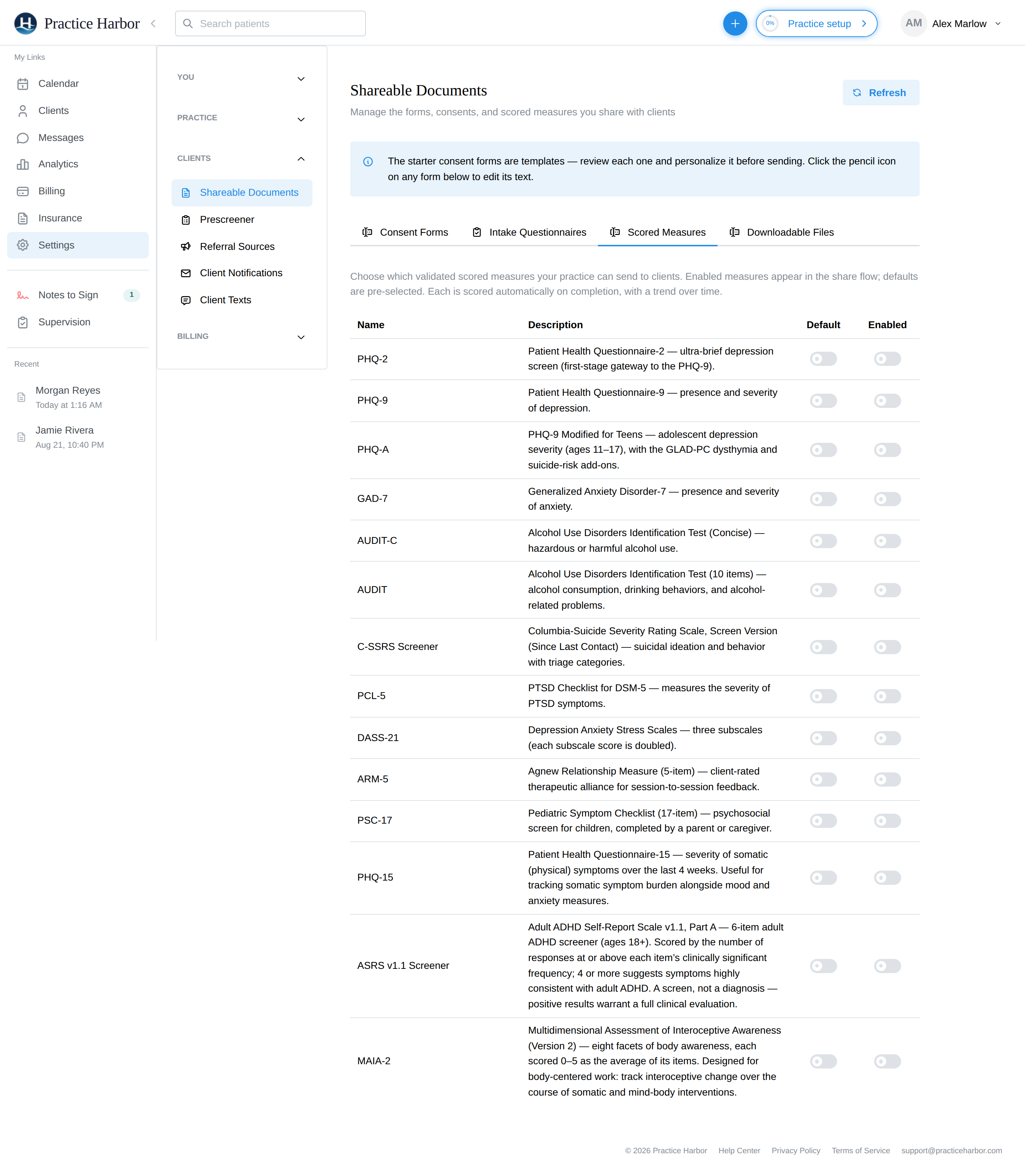
- Enabled — the measure can be sent to clients.
- Default — it comes pre-checked whenever you send an intake.
Sending measures to clients
Measures ride the same intake/share wizard as forms — check the measure in the Scored Measures section and pick its frequency:
- Once — a single send (this is how intake baselines go out)
- Before every appointment / Before every other appointment — sent the day before
- After every appointment
- Every 2 weeks / Every 4 weeks — with a First share date anchoring the cadence
Recurring measures send themselves on schedule through the portal; the client completes each one, and scoring happens on submission. To stop a schedule, find its Scheduled row on the client's Files tab and choose End recurrence — "Already-sent measures are kept; no new ones will be sent."
An unfinished measure simply stays Pending — there's no automatic nagging. Nudge with Send reminder on its Files-tab row, or rely on the client's pre-appointment document reminders if you've enabled those.
Administering a measure in session
For right-now measurement, skip the portal entirely:
- Open the client's Measures tab and click New scored measure.
- Pick the instrument, and either hand the client your screen or enter their responses yourself.
- Click Score — the result computes instantly with its severity band.
Reading the measures tab
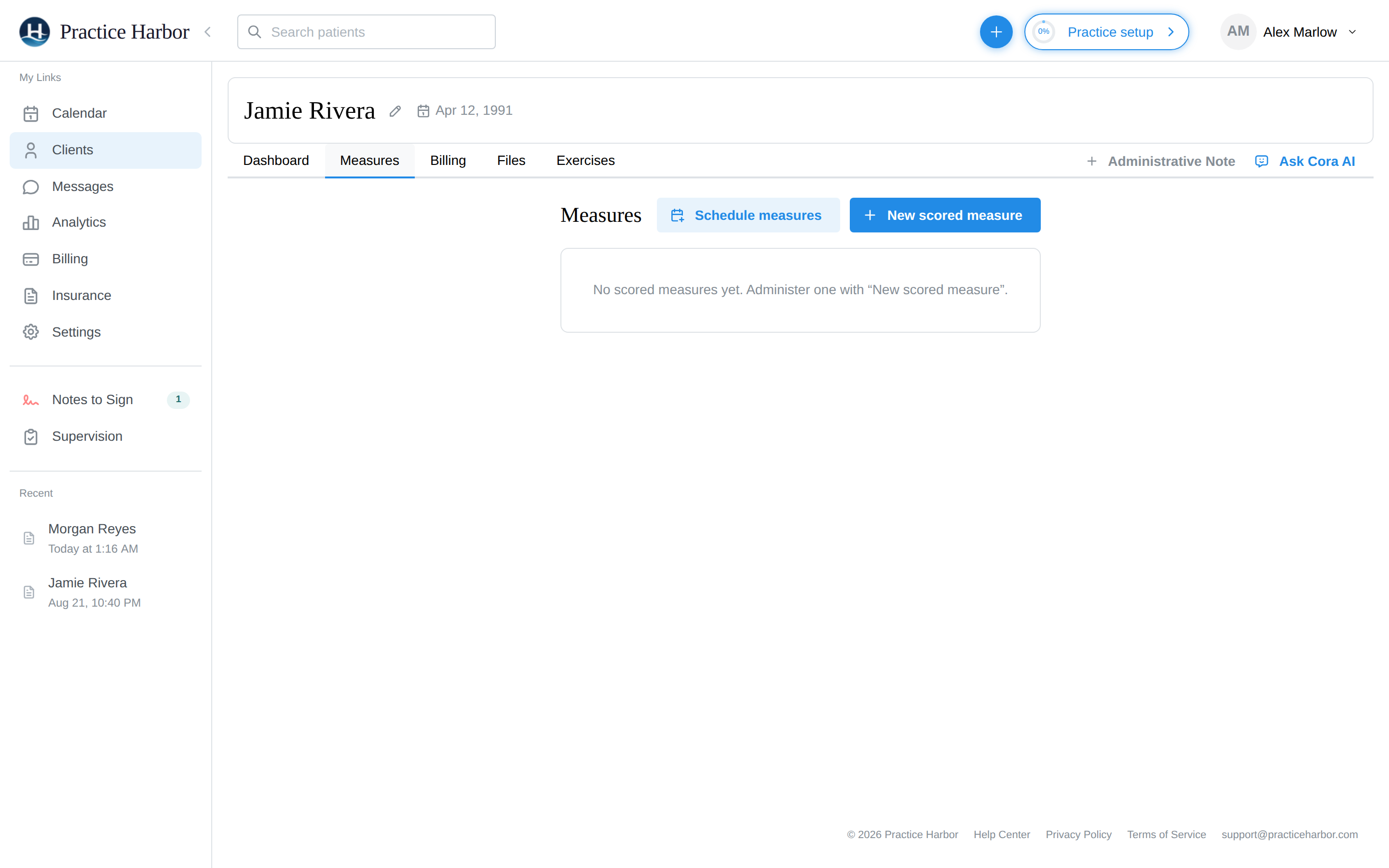
Each measure gets a trend card: the latest score out of the maximum with its severity band (e.g. "Latest: 12 / 27 · Moderate"), change since last and since baseline (down-arrows are green — lower is better on symptom scales), and a line chart drawn over color-coded severity bands so the clinical meaning of the trajectory is visible, not just the direction.
Click any administration in the Completed measures list for the full detail: the score gauge, every question with the client's response and item score, the instrument's complete scoring guide, and the source citation.
The High-Risk flag
A PHQ-9 with item 9 (thoughts of self-harm) answered anything above "Not at all" is flagged: "Client reports thoughts of suicide or self-harm. Consider following up to further assess level of risk."
The flag surfaces as a red High risk badge everywhere the measure appears — the Measures tab, the completed-measure detail, Session Prep, and the appointment timeline. It is a flag, not an alert — the app does not send you a notification, so build the habit of glancing at Session Prep before each session.
Where else scores surface
- Session Prep on the recording page — latest scores, deltas, and anything still pending, plus the scores feed the AI's pre-session summary.
- Appointment details — a "Scored measures" section showing Completed / Pending / Not sent per session.
- The Files tab — each administration and schedule as a row with status.
Good measurement practice
- Pick one or two instruments per presenting concern and administer them on a rhythm — trend beats snapshot.
- Scores are conversation starters, not verdicts: review notable changes with the client in session.