Paying for your care
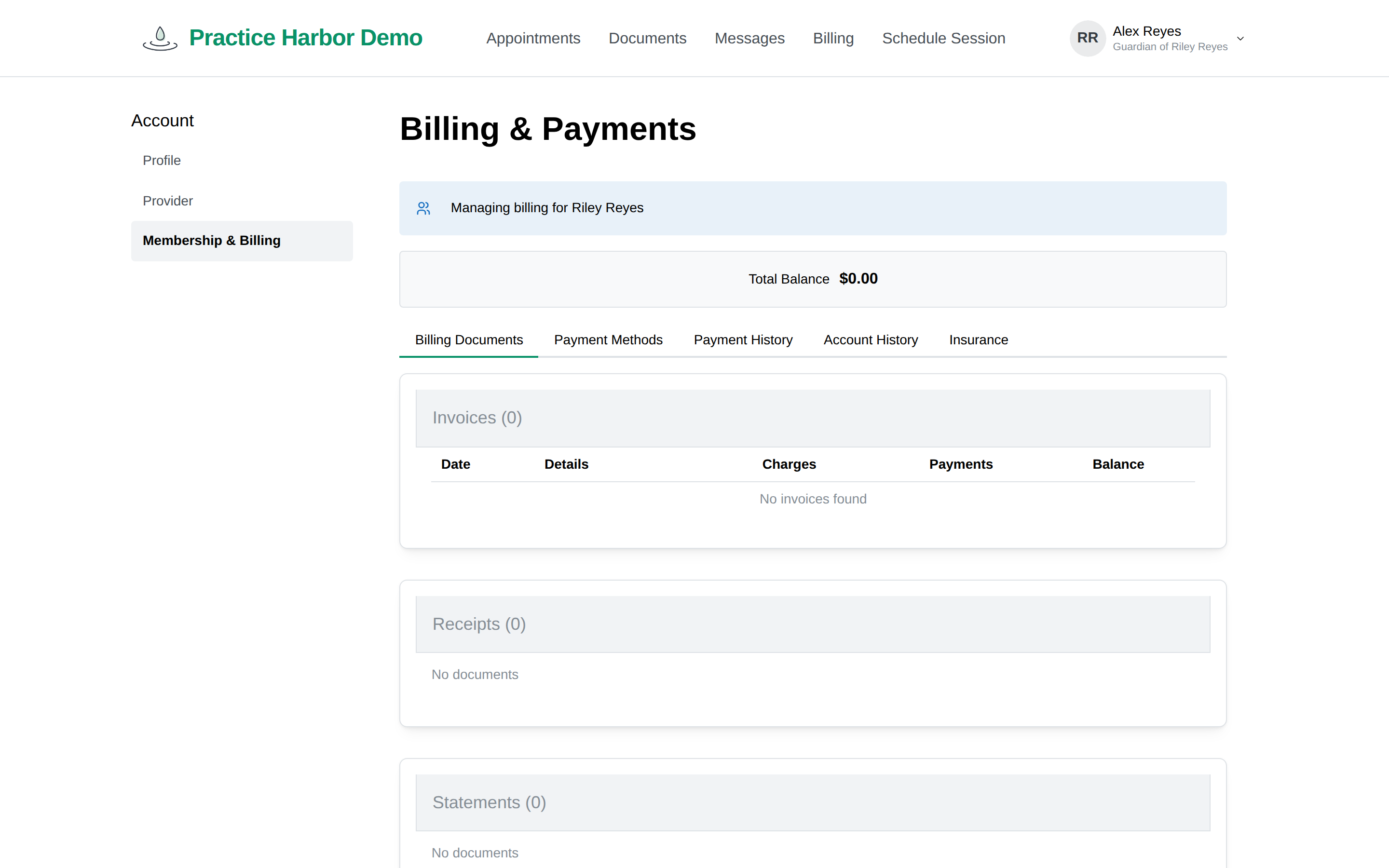
The Billing page in the portal shows your invoices and payments, lets you pay outstanding balances, and holds your cards on file.
In this guide, we'll cover:
- Paying your balance
- Adding or changing a card
- About AutoPay
- Receipts and superbills
- Insurance information
Paying your balance
- Click Billing in the top menu. Your Total Balance is shown at the top of the page.
- Click Pay Now next to it to pay everything due. (To pay a single invoice instead, open it from the invoice list on the Billing Documents tab and click Pay Now there.)
- In the Make Payment window, pick a saved card and click Submit Payment — or click + Add card to type a new card right there and pay in one step (tick Save card to keep it on file for next time).
Your invoices are listed on the Billing Documents tab with the charges, payments, and remaining balance for each — click an invoice number to see its details. Every payment you've made shows under Payment History, and if your account has a credit balance you'll see an Account Credit Available card — credit is applied to your next invoice automatically.
Adding or changing a card
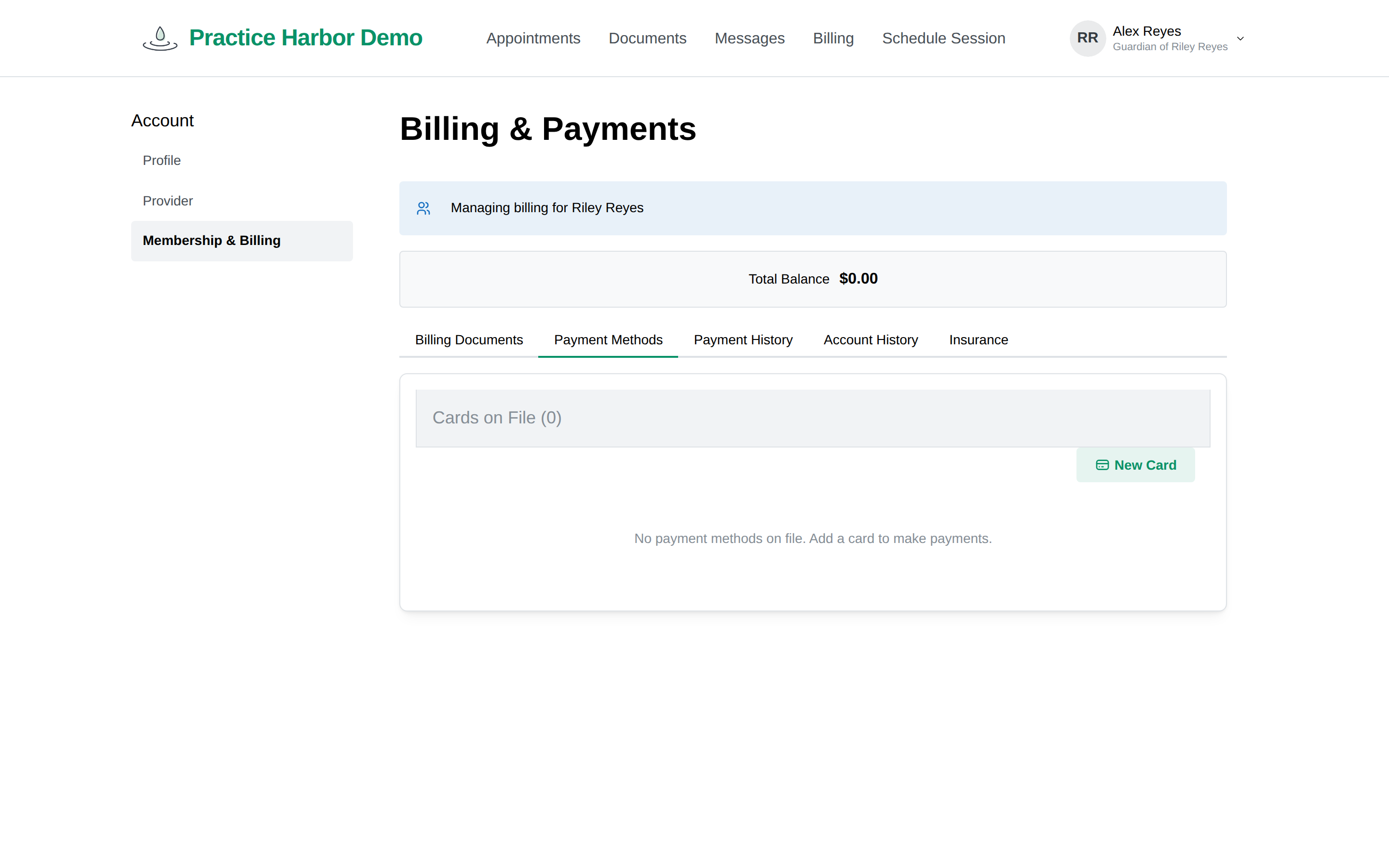
- On the Billing page, open the Payment Methods tab.
- Click New Card, enter the card details, and click Add Card. Your card is stored securely by our payment processor — the practice never sees the full number.
- With more than one card, use the Default card selector to choose which one is used; Remove deletes a card.
About AutoPay
Many practices use AutoPay: your invoice is charged to your card on file automatically overnight, so there's nothing to remember. Enrollment is managed by your practice — contact them to start or stop AutoPay, or to check whether you're enrolled.
Receipts and superbills
Everything lives on the Billing Documents tab:
- On any invoice row, Download saves the invoice as a PDF.
- Receipts, statements, and superbills your practice sends you appear in their own sections below the invoice list — click one to download it. A superbill is listed as a Statement for Insurance Reimbursement: an itemized receipt with the details (provider, diagnosis and service codes) that your insurance company needs if you file for out-of-network reimbursement yourself. If you need one and don't see it, ask your practice to send it.
Insurance information
The Insurance tab shows the coverage your practice has on file for you. It's view-only — if anything is wrong or has changed, contact your practice to update it.