Google Calendar sync
Connect your personal Google Calendar and the two schedules protect each other: your Google events block online booking here, and your appointments here show up in Google — as initials only, never client names.
In this guide, we'll cover:
- Setting up sync
- Showing more than one calendar
- What syncs, and when
- Privacy: what Google sees
- Your calendar display settings
- Disconnecting
- Troubleshooting
Setting up sync
Connecting is the whole setup:
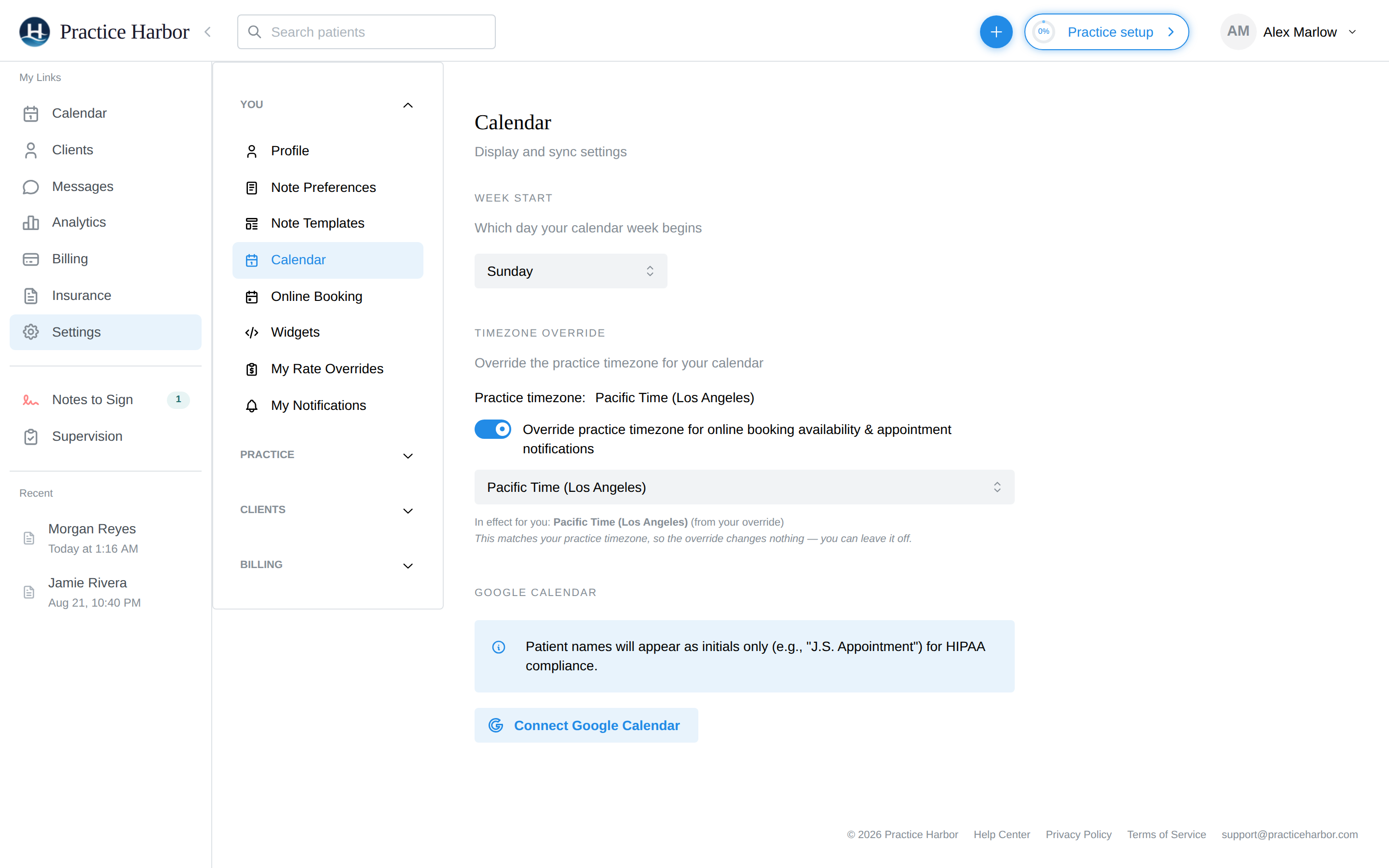
- Go to Settings → Calendar (under the You section) and find the Google Calendar section.
- Click Connect Google Calendar, sign in with Google, and grant calendar access. Google's permission screen lists each permission with its own checkbox; leave every box checked. (The permissions requested are calendar events, your calendar list, and your email address — nothing else.) If a calendar box is left unticked, the connection is refused with a note saying so; just click Connect Google Calendar again.
- Back in the app you'll see "Syncing your calendar" for a moment. A calendar named Practice Harbor is added to your Google account under My calendars, your upcoming client appointments and blocked time are written to it, and the toast tells you how many. Nothing of the practice's ever lands among your own events.
- Under Also show these calendars, tick the Google calendars whose events should appear alongside your client appointments and block your online booking times. Your own calendar is usually the first one to tick. Nothing is ticked for you.
If the calendar couldn't be created during the connection, a Create calendar button appears under Add appointments to; click it to finish.
Client appointments always go to the Practice Harbor calendar; there is no picker. If you'd rather see them on another calendar in Google, share the Practice Harbor calendar with that account or turn it on in the other app.
Showing more than one calendar
Many people keep a personal calendar next to their work one. Once your appointments calendar is set, an Also show these calendars list appears under it with your other Google calendars. These are read only. Tick any of them and their events appear alongside your client appointments and block your online booking times in the Practice Harbor app. Nothing is ever written to the calendars in that list; client appointments and blocked time are only written to the calendar you chose above, so your personal calendar never gets a client's initials on it. The calendar you chose is never offered in the list, and if it's the only calendar on the account the list doesn't appear at all. Untick a calendar at any time; no reconnect is needed.
Every calendar on your Google account is listed, including ones shared with you as view-only and subscribed feeds such as a holiday calendar or another platform's schedule; those show a "view only" caption. Ticking one of those is fine: it's read, never written to.
Click one of these events on your calendar and the details say which calendar it came from.
What syncs, and when
- Here → Google (2-way mode): appointments and blocked time appear in your Google calendar as they're created or changed, and disappear when cancelled. Everything from today forward is synced when you first connect.
- Google → here (both modes): your Google events appear on the app calendar as grey, read-only blocks the moment you open it — click one for its time details (it's badged Google). You can't drag or edit them here; change them in Google. Events you declined in Google don't block anything.
- Google busy time is subtracted from your online booking availability automatically — a dentist appointment on your personal calendar quietly removes those slots from what clients can request.
Privacy: what Google sees
Client names are never sent to Google. Synced appointments use initials only — e.g. "J.S. Appointment" — and the event description carries just the practice name. Blocked-time events sync with the title you gave them, so name those with sharing in mind.
Your calendar display settings
The same Settings → Calendar page holds two display preferences:
- Week Start — begin your calendar week on Monday or Sunday.
- Days Shown — show the full week, Monday to Saturday, or weekdays only in your week and month views. Day view always shows every day, so a weekend appointment is still one click away.
- Timezone Override — your practice's timezone is shown; flip the override switch if you personally work in a different one. The override applies to your online booking availability and appointment notifications.
Disconnecting
Click Disconnect in the Google Calendar section — it takes effect immediately (there's no confirmation prompt). Your appointments in the app are untouched; the copies the app created in your Google calendar are removed, and the toast reports how many. The Practice Harbor calendar itself is deleted from your Google account, so nothing of the practice's is left behind. Reconnecting creates a fresh one; if you had turned it on for your iPhone or shared it, do that again. If cleanup is slow you may see "Disconnect in progress — cleanup may still be running on the server" — that's normal, the connection is already severed.
Troubleshooting
The new "Practice Harbor" calendar isn't on my iPhone. iPhones show only the Google calendars you have turned on for sync. Open Google's calendar sync settings page (search "Google calendar sync select"), tick that calendar, then pull to refresh in the iPhone Calendar app. Android phones show new calendars on their own.
Settings says "Connected without calendar permission". The connection was made with the calendar boxes unticked on Google's permission screen, so nothing could sync. Click Disconnect, then Connect Google Calendar again and leave every box checked. Your calendar page shows the same notice, with a button that takes you to Settings.
Google events stopped showing on my calendar. The most likely cause is an expired Google authorization — the app treats it as a disconnect, without much fanfare. Check Settings → Calendar: if you see the Connect Google Calendar button again, reconnect; events reappear immediately.
I want appointments on a different Google calendar. They always go to the Practice Harbor calendar. Share it in Google with whoever needs it, or turn it on wherever you view your calendars. The calendars under Also show these calendars can be changed any time.
A calendar I ticked stopped showing. If a colleague stops sharing a calendar with you, or you leave it, its events quietly stop appearing and stop blocking booking. Untick it under Also show these calendars, or ask for edit access again and tick it back.
Do my colleagues see my Google events? No. The connection is personal: only you see your Google events on your calendar, and they block only your online-booking availability. Each clinician connects their own Google account.
Related
Using Apple Calendar or Outlook instead?
If you do not use Google Calendar, create a read-only subscription link instead: see Apple Calendar and other apps.