Recurring appointments
For clients you see on a regular schedule, create the whole series in one step — then manage the inevitable exceptions (one moved session, a series that outgrows its end date) without touching every appointment.
In this guide, we'll cover:
- Creating a recurring series
- Making an existing appointment recurring
- Changing one session vs. the whole series
- Extending a series
- Deleting from a series
- FAQ
Creating a recurring series
- Start a new appointment as usual: pick the client, time, location, and service.
- Tick Recurring.
- Choose the cadence — Every 1–8 weeks or months. Weekly is "every 1 week"; biweekly is "every 2 weeks".
- Choose when it stops — End after 1–52 sessions (default 4). The panel shows the computed end date ("Ends Sep 3") as you adjust.
- Click Create Appointments — every session in the series is created at once, at the same time and day pattern.
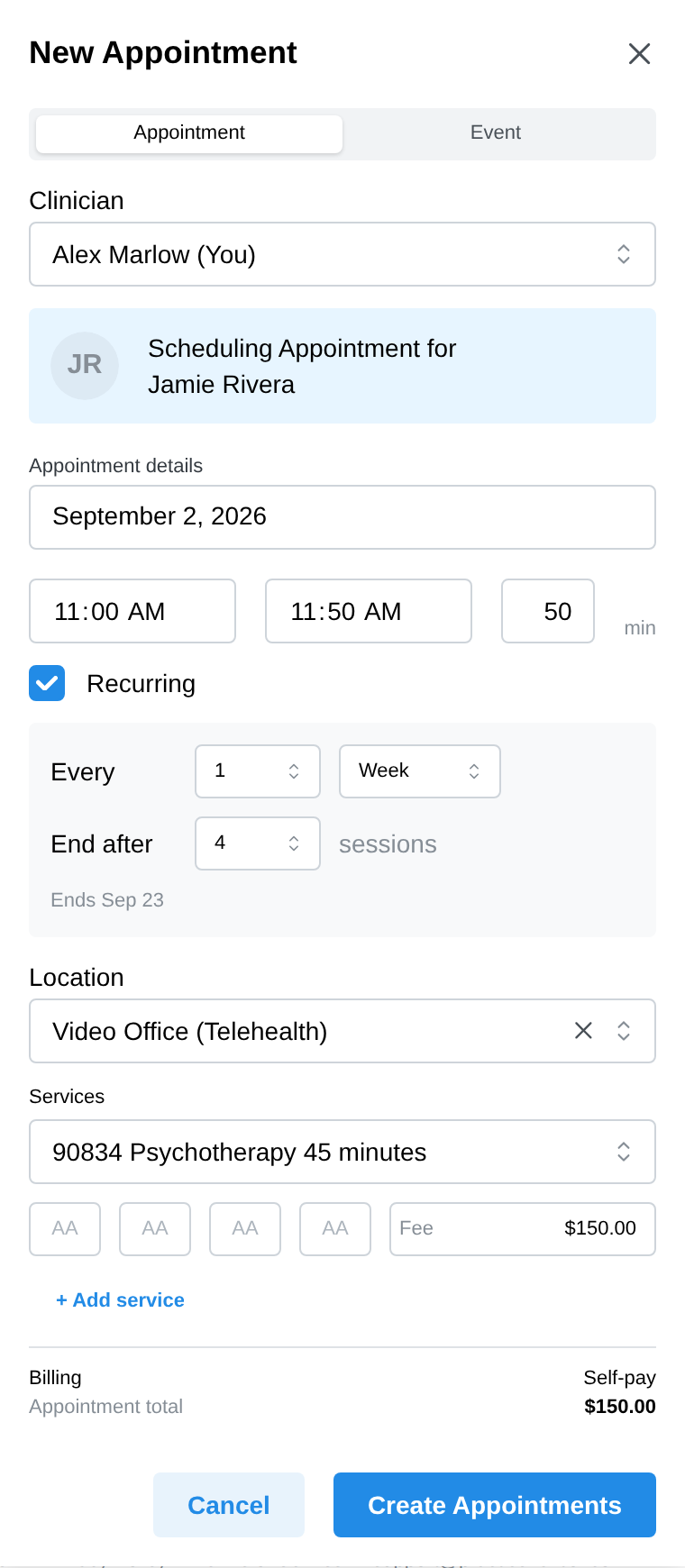
A series always ends after a set number of sessions — there's no "repeat forever" option. The countdown works in your favor clinically: a series running out is a natural prompt to revisit cadence with your client, or just extend it in two clicks.
Making an existing appointment recurring
Already created next week's session as a one-off?
- Click the appointment on the calendar.
- Tick Recurring in the details panel and set the cadence and session count.
- Click Save — the rest of the series is created after it.
Changing one session vs. the whole series
Move or edit a session that's part of a series and you'll be asked how far the change reaches:
- Update only this appointment — the client rescheduled one session; the series pattern stays.
- Update this and future appointments — the standing time itself changed; past sessions stay where they were.
This applies whether you drag the appointment to a new slot or edit it in the details panel.
The same question covers the service and fee. Change the service code, a modifier or the fee on one session and choose Update this and future appointments to apply it to the rest of the series; sessions that already have an invoice are left as they are and counted in the confirmation. Choose Update only this appointment to change just that session; as with any "only this appointment" change, that session then leaves the recurring series.
Extending a series
Each appointment in a series shows a badge with the sessions left (e.g. "3 remaining"). When it runs low:
- Open any appointment in the series.
- Click + Add more next to the series info.
- Choose how many sessions to add (1–12) — they're appended after the current last session.
To change a series' cadence (say, weekly to biweekly), end it and create a new series: delete the future appointments (below) and set up a fresh series from the next session.
Deleting from a series
Click the appointment, then the trash icon. For a series you choose the scope:
- Delete Only This Appointment
- Delete This and Future Appointments — the usual way to end a series early
- Delete All Appointments in Series
Sessions that already have a progress note are protected: series deletion leaves them in place, so your clinical record survives even an aggressive cleanup. Individual sessions with notes, superbills, or invoices follow the usual locked-appointment rules.
FAQ
Do recurring sessions bill separately? Yes — each session in the series is its own appointment with its own services, charges, and invoice once it happens. The series is just a scheduling convenience.
Do clients get a reminder for every session? Yes — reminders are per-appointment, so each session in the series triggers its own.
What happens when the series ends? Nothing automatic — the last session simply has no successor. The "remaining" badge counting down is your prompt to extend or wrap up.