Security & HIPAA
Your clients' data security is our top priority.
In this guide, we'll cover:
- HIPAA compliance
- Data protection
- Your responsibilities
- Changing your password
- Trouble signing in
- Two-Factor authentication
- Automatic sign-out
HIPAA compliance
- BAA included — a Business Associate Agreement is automatically in effect when you create your account
- Encryption — all data is encrypted in transit (TLS) and at rest (AES-256)
- Access controls — role-based permissions ensure team members only see what they need
- Change history — every change to a client record is versioned, with who made it and when
Data protection
- Data is stored in HIPAA-eligible cloud infrastructure (AWS)
- We maintain a formal HIPAA security risk analysis with an active remediation program
- No client data is used to train AI models
- Audio recordings are processed securely and not retained beyond what's needed for transcription
Your responsibilities
- Use a strong, unique password
- Don't share your login credentials
- Log out when using shared computers
- Report any suspected security issues to support@practiceharbor.com
Changing your password
While signed in:
- Go to Settings → Profile and scroll to Security.
- Click Change Password.
- Enter your Current Password, then your New Password twice, and click Update Password.
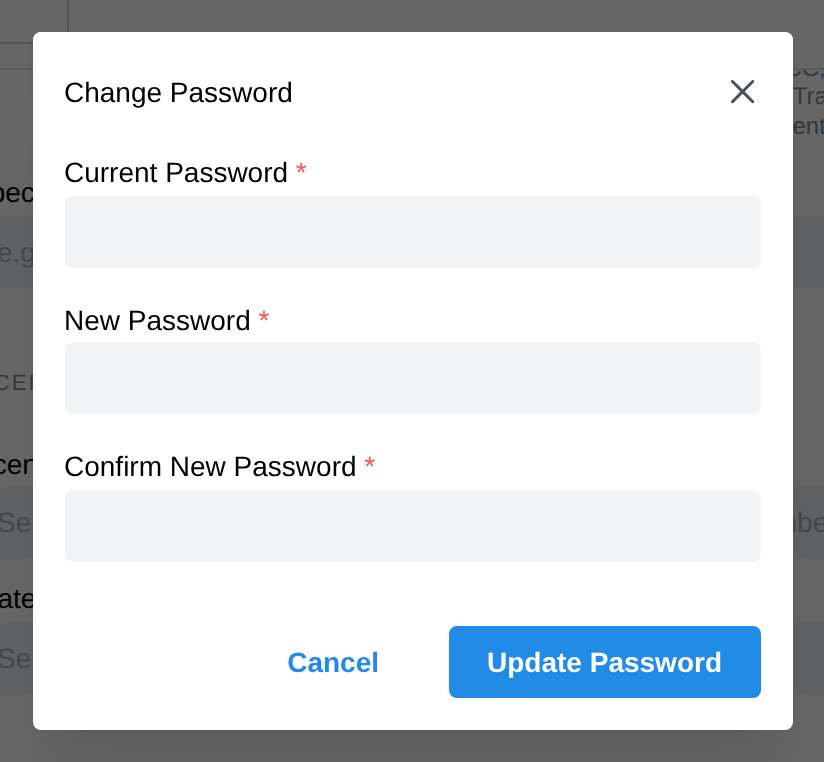
If you're locked out: on the sign-in page, enter your email and click Continue, then click Forgot password? and follow the email link to set a new password.
Trouble signing in
"Forgot password?" email never arrives. Check spam first, and confirm you're using the address your practice invited you with — the reset only goes to an address that has an account. Team members can ask the practice owner to check the invitation address under Settings → Team.
Your invite link says it was already used. Invitation links are one-time. Ask the practice owner to resend the invitation from Settings → Team (the ⋮ menu next to your name) — a fresh link arrives by email.
Password is right but sign-in loops back. Clear the saved autofill entry and type the password by hand — browser autofill filling an old password is the usual cause. Still stuck? Try a private/incognito window; if that works, clear this site's cookies in your normal window.
Lost your authenticator device (2FA). On the code screen, click Can't use your authenticator? Email me a code — if you set up the email backup (see below), a code arrives at your sign-in email and works in place of the authenticator code. No email backup? Contact support@practiceharbor.com from the email address on your account and we'll help you regain access.
Two-Factor authentication
Each team member can turn on Two-Factor Authentication for their own account. Encourage it practice-wide — it's the single highest-value account protection available.
- Go to Settings → Profile and scroll to Security. The badge next to Two-Factor Authentication shows Disabled or Enabled.
- Click Enable 2FA.
- Scan the QR code with an authenticator app (Google Authenticator, Authy, and so on).
- Enter the 6-digit code the app shows in Verification Code and click Verify & Enable.
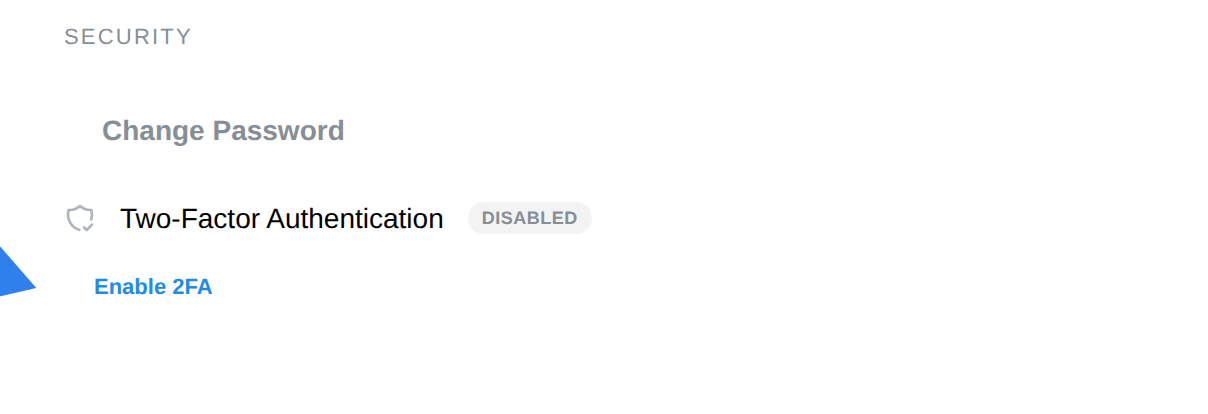
From then on, sign-in asks for a code from the app after your password.
Add an email backup. Once 2FA is on, the Security section offers Add or confirm email backup: click it, enter the code we email you, and click Confirm. If you ever lose your authenticator, you can then choose Email me a code at sign-in instead of contacting support.
Turning it off: click Disable 2FA, enter a current code from your authenticator app, and click Disable.
Automatic sign-out
Practice Harbor signs you out when nobody has clicked, typed or scrolled for a while, so a computer left open doesn't stay signed in. Two-factor authentication protects signing in, and automatic sign-out protects a session someone walked away from.
Changing the window (practice admins):
- Go to Settings → Practice Details and scroll to Security at the bottom of the page.
- Under Automatic Sign-Out, pick a time from 30 minutes to 72 hours.
The change applies to everyone in your practice and saves as soon as you pick it. Until you change it, the window is 24 hours, so you stay signed in overnight but sign in again after a weekend or a day off. Everyone can see the current window under Settings → Profile → Security, below Two-Factor Authentication.
A minute before the sign-out, a message asks Are you still there?. Click Stay signed in or just move the mouse to keep working. Save any note you're editing before you step away, because unsaved changes are lost when the sign-out happens. Working in another Practice Harbor tab counts as activity. Nobody is signed out during a session recording, including a paused one, or a video call.