Practice settings
Practice-wide configuration lives in the Practice section of Settings (visible to the practice owner and practice managers).
In this guide, we'll cover:
Practice details
Go to Settings → Practice Details:
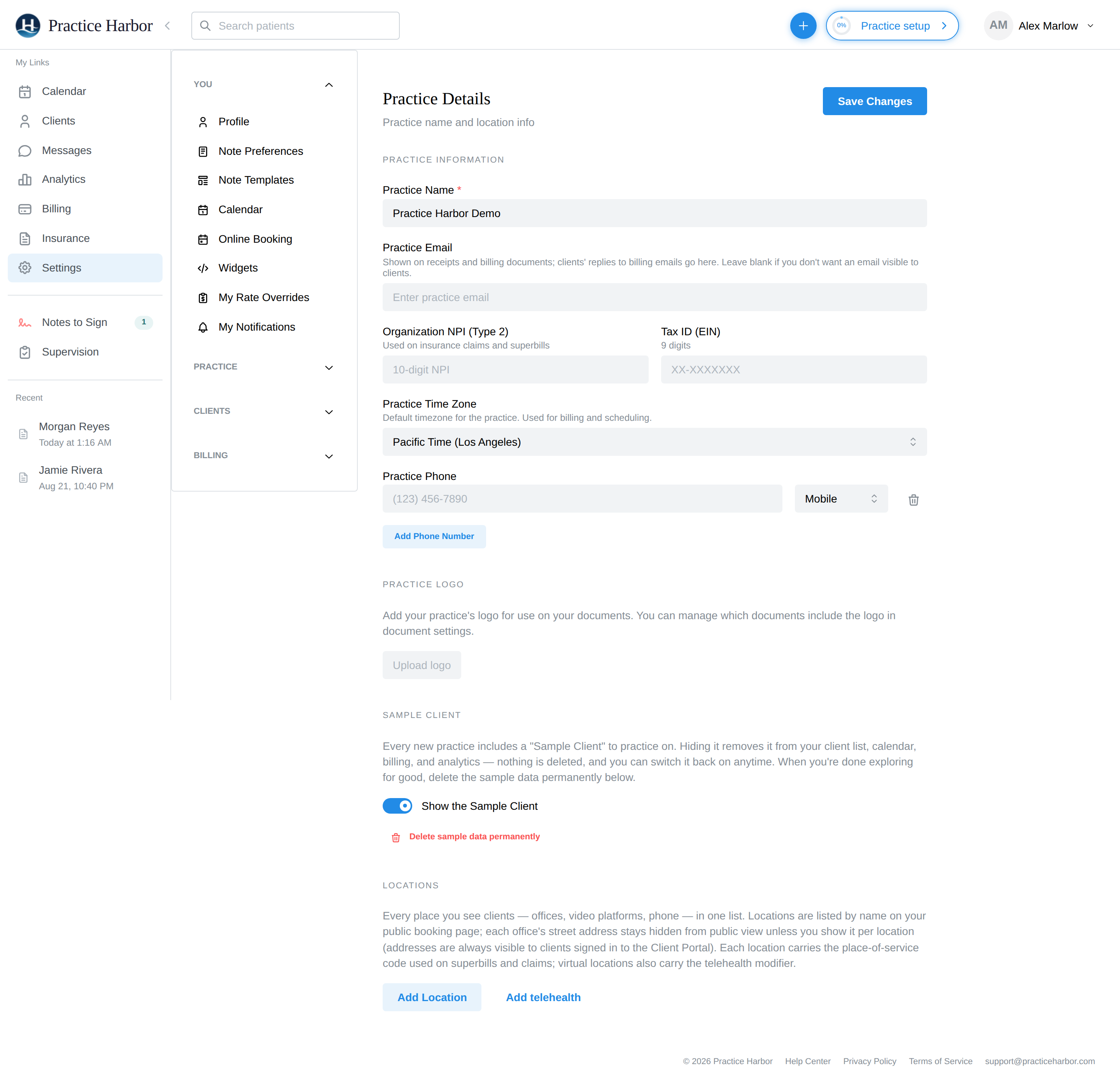
- Practice Name — appears throughout the app and on client-facing documents
- Practice Email — shown to clients in intake emails
- Practice Time Zone — the default timezone used for billing and scheduling (individual clinicians can override their own calendar timezone in Settings → Calendar)
- Practice Phone — add one or more numbers (mobile/office)
- Practice Logo — upload a logo for your documents; which documents include it is controlled in document settings
Click Save Changes when done. Practice details appear on invoices, superbills, and other billing documents.
The rest of the practice section
- Patient Portal — your practice's portal URL and portal options (see Client Portal)
- Team — team members, roles, and supervision
- Subscription — your plan and billing
- EHR Import — migrate data in from another EHR
- Data Export — export your practice data
Group practices billing under an organization also set their Organization NPI (Type 2) and Tax ID during Practice setup.
Practice identifiers
Organization NPI (Type 2) and Tax ID (EIN) are editable right here on Practice Details ("Used on insurance claims and superbills") — you don't have to re-run setup to correct them.
Locations
Practice Details also manages your Locations — every place you see clients (offices, video platforms, phone) in one list. Virtual locations are what make appointments video sessions, and the star marks the practice's default session location — the location preselected on new appointments unless a client has their own default.