Reports
Click Analytics in the left menu, then the Reports tab, and click a report to open it. The View report links on each dashboard card also open the matching report. Which reports you see depends on your practice: the insurance reports appear once insurance features are on, and the practice-wide money reports (Income allocation, Payment reports, Payouts) need practice-wide analytics access.
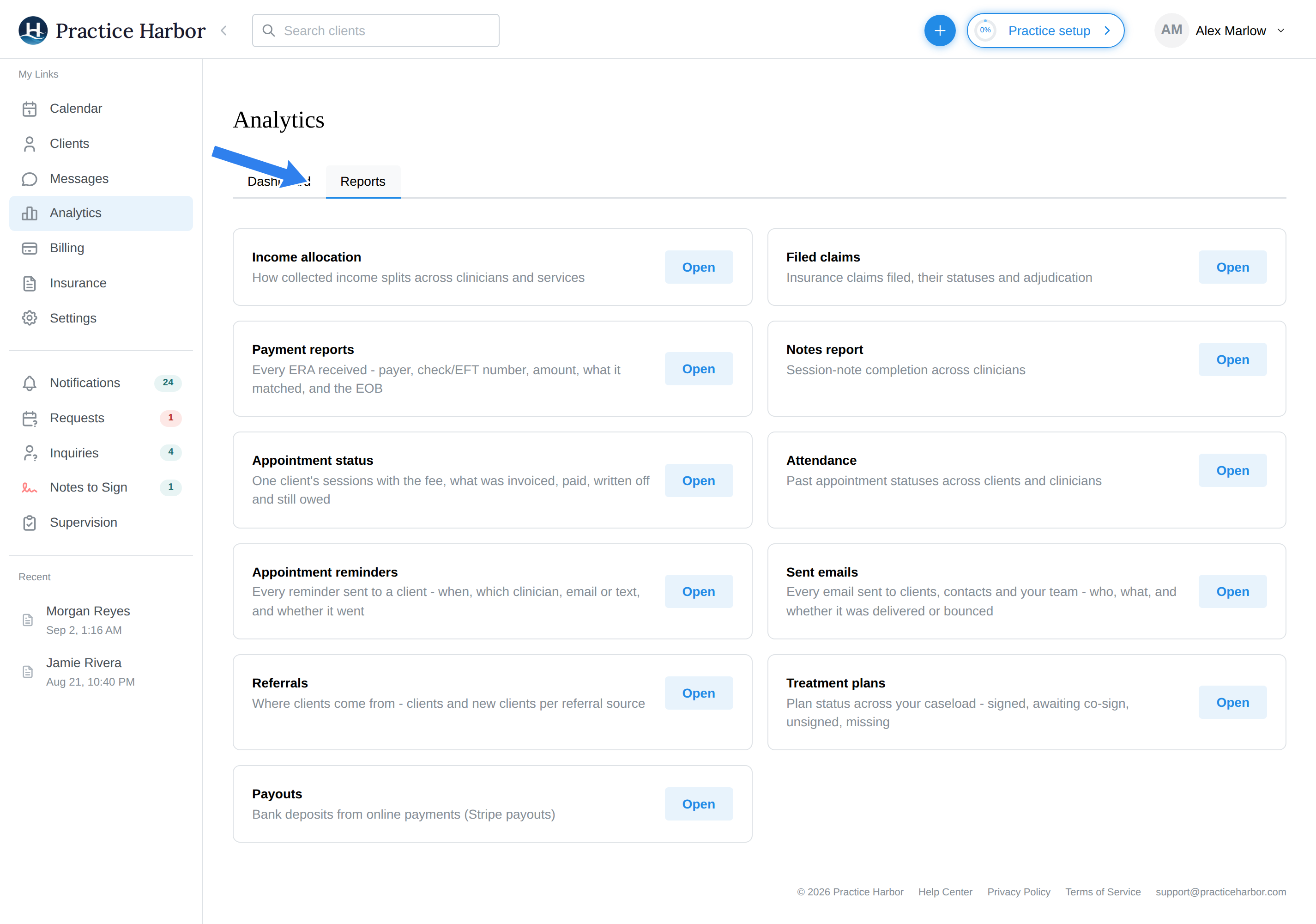
In this guide, we'll cover:
- Notes report
- Appointment status report
- Attendance report
- Appointment reminders report
- Sent emails report
- Income allocation report
- Referrals report
- Treatment plans report
- Payment reports
- Payouts report
- Filed claims report
Notes report
The documentation-compliance view: your sessions matched against their notes, so unsigned or missing documentation stands out. Use it for the end-of-week "is everything documented and signed?" sweep — it complements the Notes to Sign queue in the sidebar, which tracks your own unsigned notes in real time.
Appointment status report
One client's sessions, one row each, with the money on every row: total fee, the client's charge, what is still uninvoiced, what they paid, what was written off, what is still unpaid, and what insurance paid. Filter by date range and status (Paid, Unpaid, Uninvoiced) and export to CSV. The quickest way in is the Appointment status report link on the Client billing card of a client's or family's Dashboard tab, which opens the report already filtered to them; from the Reports tab, search for the client by name. The figures are the same ones shown on the client's Billing tab, laid out as a report.
Attendance report
The Attendance report lists past appointment statuses across clients and clinicians. The View report link on the dashboard's Appointments card opens it for the same dates.
Each appointment is one row, with the client, date of service and status. Clinician name appears when more than one clinician has appointments in the range, and Location appears when your practice has two or more locations. The gray row under the titles counts the clients, clinicians, appointments, offices and statuses in what you're viewing, and it follows your filters.
- Statuses: Show, Canceled, No show, Late canceled and Clinician canceled. A past appointment nobody marked counts as Show, and appointments that haven't started aren't listed.
- Clinician: the clinician assigned to that appointment, even if the client's primary clinician is someone else.
- Group and couple appointments: one row labeled Group appt with the number of clients. Click it to see each client's status. If you filter by client or status, it lists only the clients who match.
- Location: older appointments may show
--because no location was recorded on them. Imported appointments show the location from your previous system.
To count one clinician's sessions, choose the clinician and Show, then read the appointments count in the gray row.
Filter by date, client, location, status and clinician, click a column title to sort, and use Export to download everything you've filtered as CSV or Excel.
Clinicians with billing access see only their own clients, including within a group.
Appointment reminders report
Every reminder that went to a client, newest first: the date and time it was sent, the primary clinician, the client, the type (reminder email or reminder text message) and its status. Sent means we handed the email to the mail service or the text to the client's carrier; Failed means a text could not be handed over. A reminder a clinician sent again by hand from the appointment's Share link menu is marked Sent again by staff. Hover over the date to see which session the reminder was for. Filter by clinician and date range (the last 30 days by default) and export to CSV. This is where to look when a client says they never got their reminder; the appointment itself does not list reminders.
Sent emails report
Every email the practice sent, newest first: the date and time, the clinician it went out for, the recipient (a client, a contact or a team member) with the address used, the subject, the type (reminder, confirmation, portal invite, secure message notice, invoice, and so on) and what happened to it. Queued means we handed it to the mail service and have no word back yet. Deferred means the recipient's mail server asked us to wait; delivery keeps being retried for up to 72 hours. Delivered means the recipient's mail server accepted it. Dropped: Bounced means the address was rejected; email to that address is held until the address on the client's chart is corrected, and the chart shows the same warning. Dropped: Spam report means the recipient reported the email as spam. Dropped: Invalid means the message was refused before it could be sent. Hover over a status for the mail server's own wording. Filter by clinician and date range (the last 30 days by default) and export to CSV. This is where to look when a client says an invite or invoice never arrived. Tracking began on October 14, 2026 for appointment reminders and notifications, portal invites, secure message notices and billing documents. Since October 17 it also covers intake form emails, document and check-in reminders, payment reminders, portal sign-in links and password emails, online booking replies, and the notices your team receives (a new booking request, completed intake forms, an uploaded file, a signed treatment plan, a deleted portal account, a payer enrollment update). Rows marked (team) went to a team member rather than a client.
Income allocation report
How much money is credited to each clinician in a period, which is what group practices use to calculate payroll. Amounts count by the date the money was received, so a payment for an October session received in November counts in November.
The Current payments tab shows each clinician's Total client payments, Total insurance payments, and Total allocated, with a Totals row on top. Filter by date range and clinician, and turn Include insurance off to see client payments only.
- Details next to a clinician opens their payments one by one: pay date, service date, client, and amount. Details on a payment shows its appointment, billing code, invoice or claim, and insurance payment information.
- Refunds appear as negative amounts on the clinician who was credited. Insurance recoupments do too.
- Account credit counts when it is applied to a session, not when it is received. Until then, it is under View unallocated, together with insurance money not yet posted to a claim. Unallocated money isn't in Total allocated, so the total can differ from Income on the dashboard.
- Unattributed is money applied to something with no clinician to credit, such as a product or custom invoice line.
Export downloads a CSV with one row per payment, using whatever filters are on. It includes client names, so store and share it securely.
The Insurance payer allocation tab shows received insurance money by payer, then clinician, and has its own export. Use it to reconcile a payer's 1099.
Referrals report
Where your clients come from: one row per referral source with total clients and new clients in the selected window, campaign-by-campaign breakdown under Online booking, CSV export. Sources are managed at Settings → Referral Sources; the full guide is Referral sources.
Treatment plans report
Plan status across your caseload: one row per client showing whether their current treatment plan is signed, awaiting a supervisor's co-sign, unsigned, or missing. See Treatment plans.
Payment reports
(Shown for practices with insurance features enabled.)
Every ERA (electronic remittance) received: the payer, the check or EFT number, the amount, what it matched, and the EOB. See Payment Reports.
Payouts report
Your money's journey from client card to bank account: the payouts your payment processor has sent, with the transactions inside each payout. Requires online payments to be set up — the report will tell you if it isn't. Use it to reconcile bank deposits against sessions.
Filed claims report
(Shown for practices with insurance features enabled.)
Every claim filed in the period with its current status — the analytical companion to the Insurance hub's Claims tab: the hub is for working claims; this report is for measuring them (volumes, aging, payer mix).